

How to Sync Marketo Lists to Ad Networks
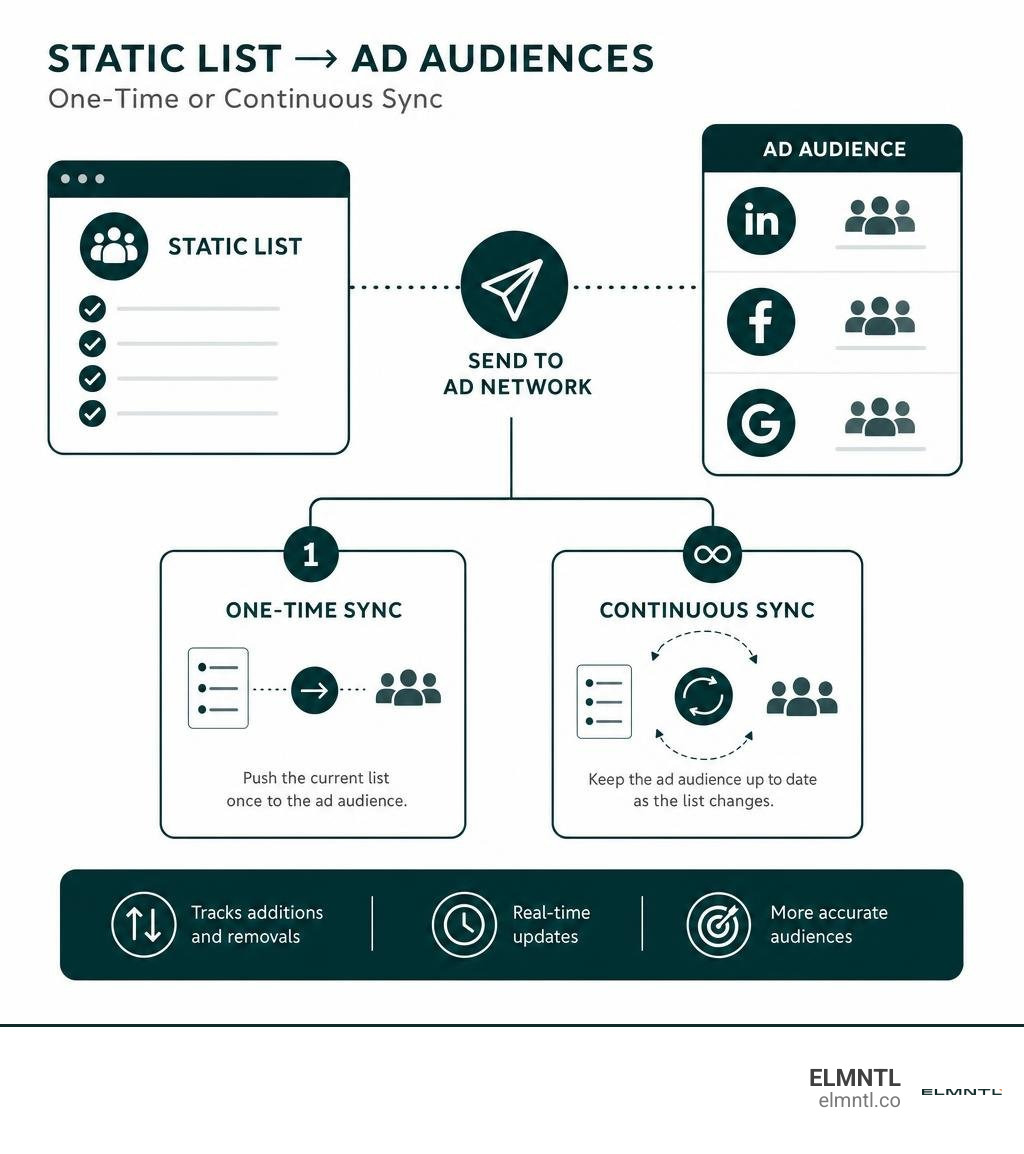
To use Marketo Ad Bridge, now called Ad Network Integrations, connect your ad account through LaunchPoint. Then open a static list in Marketo, select Send to Ad Network, choose LinkedIn, Facebook, or Google and a destination audience, and pick a one-time push or continuous sync. Continuous sync tracks changes to static-list membership. Sending a smart list once does not keep that audience up to date.
Ad bridge marketo terminology:
Understanding Ad Bridge Marketo: Architecture, Features, and Evolution
Modern digital advertising relies heavily on first-party data. With third-party tracking cookies depreciated and strict privacy regulations in place, your CRM and marketing automation databases represent your most valuable assets. Connecting these databases to ad networks is central to understanding what integrated marketing entails across multichannel campaigns.
Marketo Ad Bridge was engineered to bridge the gap between behavioral marketing automation and programmatic media. At its core, the tool matches first-party records, such as email addresses and phone numbers, from Adobe Marketo Engage with active profiles on major advertising platforms. Instead of relying solely on on-site pixels to build retargeting pools, you can use actual customer journey milestones, lead scoring thresholds, and offline CRM status updates to drive paid campaigns.
From Legacy Ad Bridge to Modern Ad Network Integrations
When Marketo first introduced this feature, it was branded as Marketo Ad Bridge. Marketers accessed it via specialized icons within the Lead Database. Over time, as Adobe acquired Marketo and modernized the user interface, the tool underwent a functional and cosmetic overhaul.
Today, Adobe officially catalogs this functionality under Ad Network Integrations within the Adobe Experience Cloud ecosystem. While long-time practitioners still search for and refer to it as Ad Bridge, the workflow is now fully embedded into LaunchPoint services and standard list actions. The underlying capability remains focused on moving first-party data seamlessly into paid media systems.
Supported Ad Networks and Channels
Marketo Ad Bridge natively supports key advertising ecosystems where B2B and enterprise brands spend their media budgets:
- LinkedIn Matched Audiences: Ideal for B2B targeting, allowing account lists and contact lists to be targeted with Sponsored Content.
- Facebook Custom Audiences: Used to target users across Facebook and Instagram based on CRM records.
- Google Customer Match: Serves targeted search, YouTube, and display ads to matching Google accounts.
- AdRoll Retargeting: Enables programmatic display and social retargeting across the web using behavioral segments.
| Ad Network | Audience Refresh Frequency | Identifier Hashing | Key API Limits |
|---|---|---|---|
| LinkedIn Ads | Continuous (Real-time queue) | SHA-256 (Handled by integration) | Minimum 300 matched members to serve |
| Facebook Ads | Continuous or One-time | SHA-256 | Maximum 500 Custom Audiences per ad account |
| Google Ads | Continuous or One-time | SHA-256 | Minimum 1,000 active search users; pre-existing list required |
| AdRoll | Continuous sync | SHA-256 / Cookie match | Platform data retention limits apply |
Step-by-Step Guide: How to Sync Marketo Lists to Paid Media Networks
Bridging your CRM data to ad platforms requires proper setup inside LaunchPoint, followed by careful audience mapping. Understanding this process is essential when learning how to build an integrated digital campaign that delivers consistent touchpoints.
Configuring LaunchPoint for Ad Bridge Marketo Integrations
Before sending any lists to ad networks, you must authorize the connection between Marketo and your respective ad accounts using LaunchPoint.
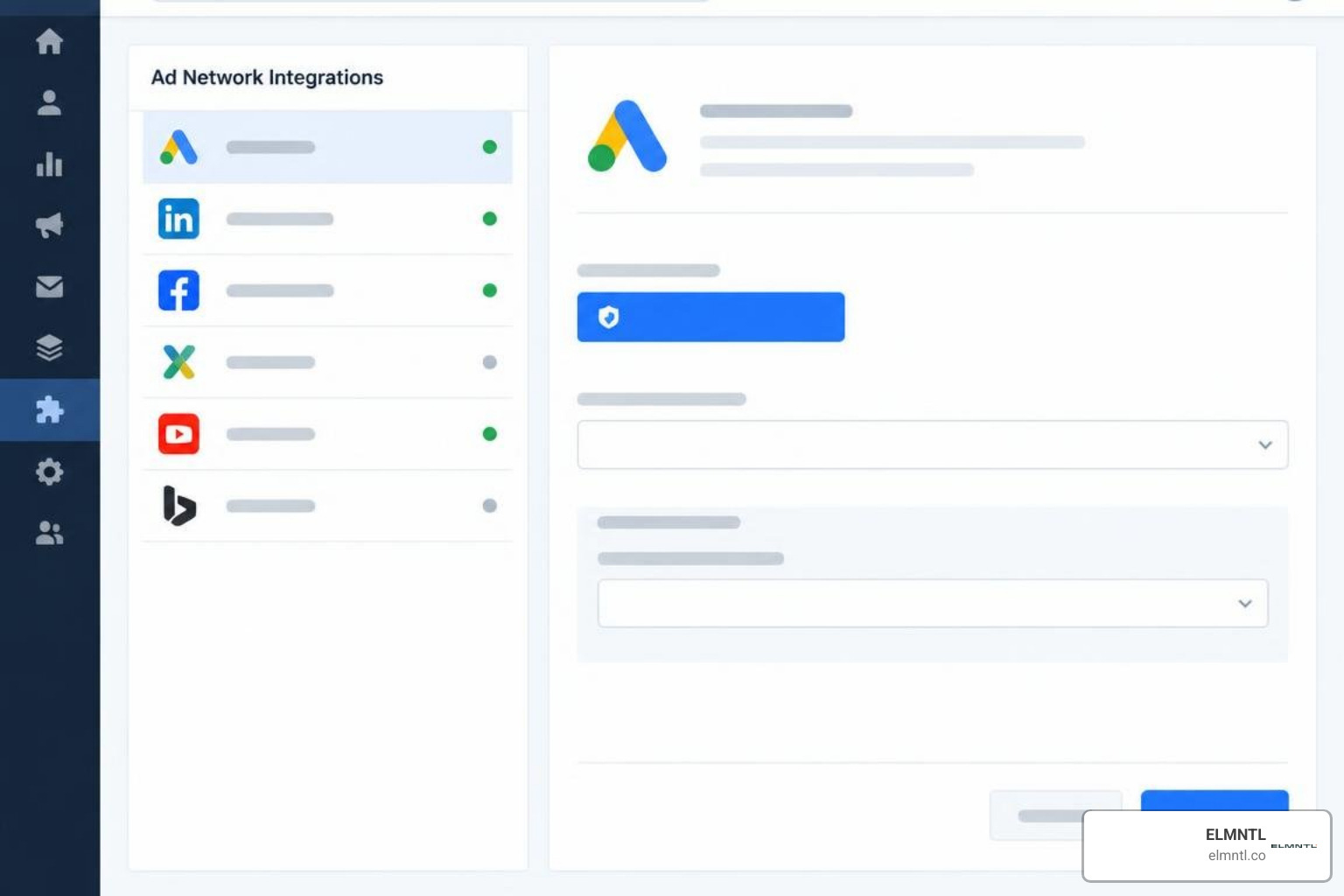
- Navigate to Admin: In Marketo, click Admin in the top navigation bar, then select LaunchPoint from the left-hand menu.
- Create a New Service: Click New, then choose New Service.
- Enter Service Details: Name your service clearly (e.g., LinkedIn Ads Master Account). In the Service dropdown, select your target platform (such as Facebook Custom Audiences, LinkedIn Matched Audiences, or Google Ads).
- Authenticate via OAuth: Log in with the administrative credentials for your ad platform, accept the data permissions, and agree to the platform’s custom audience terms of service.
- Select Ad Accounts: Choose the specific Ad Account ID you want linked to this Marketo instance, then click Create.
For full step-by-step documentation, you can refer to Adobe’s official documentation on sending a list to an ad network.
Managing Continuous Audience Sync in Ad Bridge Marketo
Once LaunchPoint is configured, you can send your lists to the ad network. Here is how continuous sync works in practice:
- Navigate to Database and locate the Static List you want to bridge.
- Click List Actions > Send to Ad Network.
- Select your target ad network and choose whether to push to an existing audience or generate a new one.
- Select your Push Type: choose Continuous Audience Sync if you want Marketo to automatically update the ad platform as leads enter or leave your list.
- Click Save or Update.
When reviewing the Adobe guide on creating a Custom Audience in Facebook, keep the following prerequisites in mind before initiating any sync:
- You must have Administrative permissions on both Marketo and the destination ad account.
- For continuous sync, use a Static List, because dynamic Smart Lists cannot maintain an ongoing automated sync on their own.
- Ensure that core matching identifiers (primarily email address, first name, last name, and phone number) are normalized in Marketo.
- Confirm that your target ad account is active and in good billing standing.
Technical Limitations, Match Rates, and Troubleshooting
Deploying first-party audiences requires strict attention to platform rules and data hygiene. Without proper controls, marketers risk aligning multichannel messaging poorly across their touchpoints.
Navigating Google Customer Match and Facebook Audience Constraints
Each ad network enforces its own API boundaries and audience size restrictions:
- Google Customer Match Requirements: Marketo cannot create a brand-new Customer Match list in Google Ads from scratch. You must first create the audience list inside the Google Ads UI and seed it with at least one record. Once established, Marketo can append leads to that existing list. Additionally, Google requires a minimum of 1,000 active matched users before ads will serve across search or display.
- Facebook Audience Limits: Facebook enforces a hard limit of 500 Custom Audiences per ad account. Furthermore, when you push a list from Marketo to Facebook without continuous sync enabled, the audience is strictly static.
- Single Destination Limit: A single Marketo static list can only be linked to one destination ad network audience at a time. If you need to sync the same segment to both LinkedIn and Google Ads, you must clone the static list or route leads into two separate static lists using a Smart Campaign.
Resolving Processing Delays, Missing Icons, and Low Match Counts
When managing integrations, you may encounter a few common technical roadblocks.
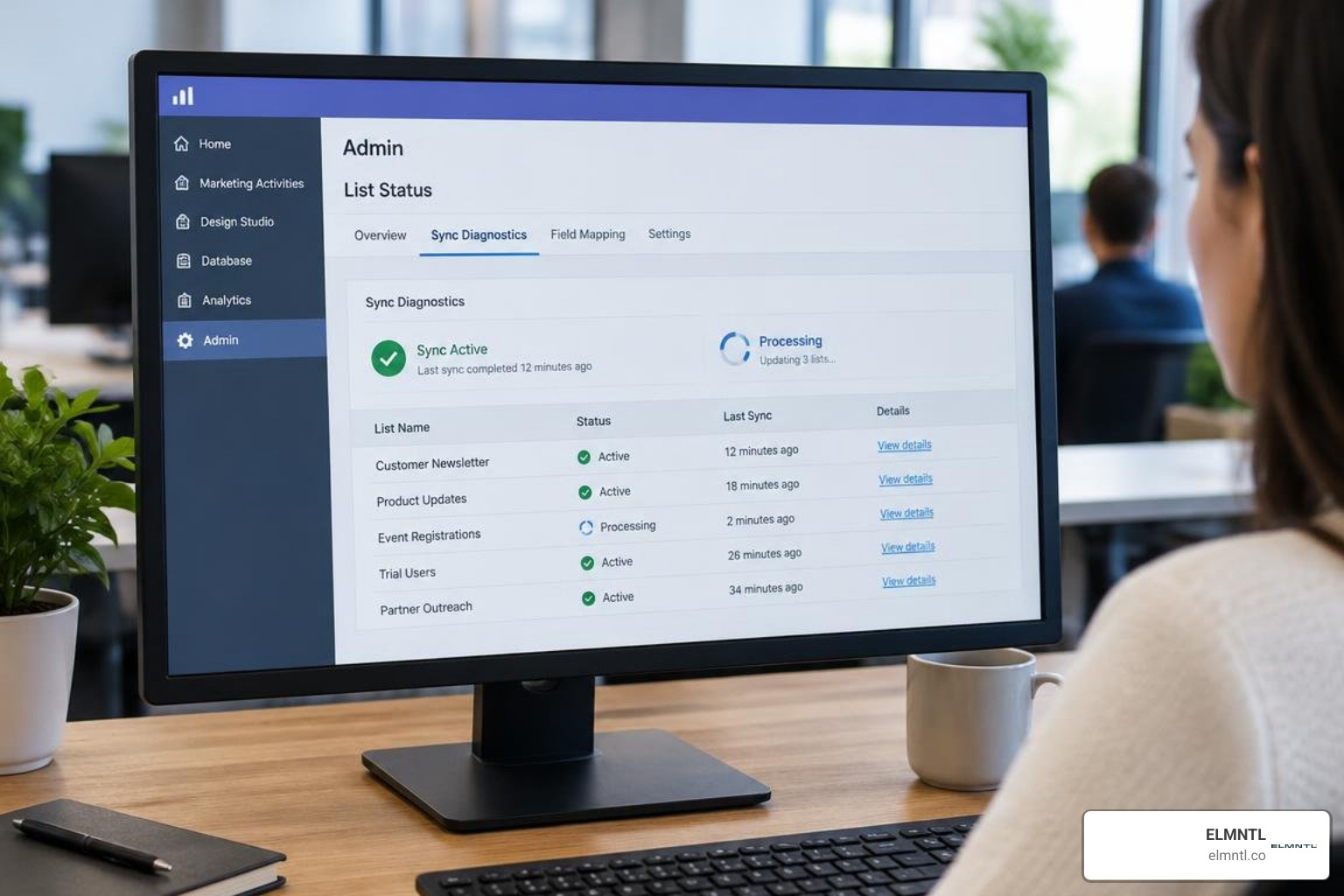
1. Processing Delays and Match Discrepancies
When you upload a list of 10,000 records, the ad network might only display a match of 4,000 to 6,000 users. This is normal. Match rates depend entirely on whether the email address in your Marketo instance matches the login email of the user on LinkedIn, Facebook, or Google.
B2B campaigns often experience lower match rates on Facebook when only corporate email addresses are stored. Furthermore, processing times can take anywhere from 12 to 24 hours for Google Ads and LinkedIn to fully index a newly pushed list.
2. Disappearing UI Icons
Users occasionally report that the classic “Send Via Ad Bridge” icon disappeared from their Marketo Lead Database view. This occurred because Adobe migrated list-sharing actions directly into the List Actions menu dropdown under Send to Ad Network. If this option is grayed out, verify that your user role has LaunchPoint integration permissions enabled.
High-Impact B2B Use Cases and Real-World Performance Results
Pairing CRM intelligence with paid media allows teams to execute highly effective digital marketing strategies that maximize pipeline velocity.
Cross-Channel Lead Nurturing and Account-Based Retargeting
- Account-Based Marketing (ABM): Group target accounts by tier using Marketo Smart Campaigns. Add decision-makers from Tier 1 accounts to a dedicated static list, then continuously sync it to LinkedIn Matched Audiences. You can serve tailored thought-leadership ads exclusively to target accounts currently in an active sales cycle.
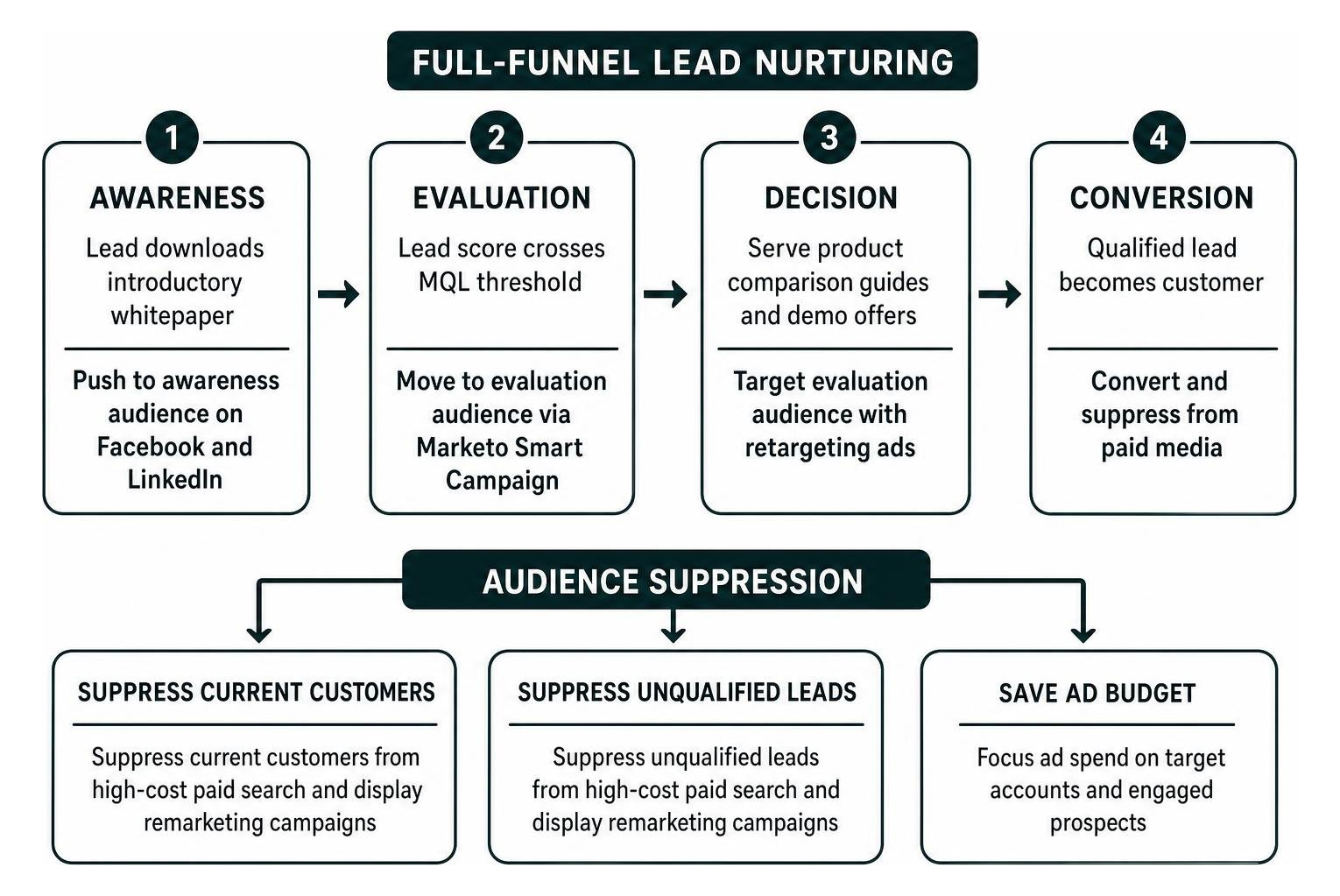
- Funnel Stage Progression: When a prospect downloads an introductory whitepaper, push them into an awareness audience on Facebook and LinkedIn. When their lead score crosses a MQL threshold, a Marketo Smart Campaign moves them from the awareness list to an evaluation list, serving product comparison guides and demo offers instead.
- Customer and Churn Suppression: Save your ad budget by suppressing current customers and unqualified leads from high-cost paid search and display remarketing campaigns.
- Webinar Acceleration: Build a static list for registered webinar attendees. Sync that list to LinkedIn and AdRoll to display reminder ads leading up to the live event, improving overall attendance rates.
Measuring ROI: Real-World Case Studies and Conversion Benchmarks
Integrating marketing automation with ad networks consistently delivers measurable cost savings and engagement gains. For example, Pantheon used the Marketo Ad Bridge integration with AdRoll to synchronize CRM data into their retargeting workflows.
By delivering segmented ads directly to verified prospects, Pantheon achieved a 32% increase in click-through rates (CTR) and a 22% reduction in cost-per-acquisition (CPA). These joint performance metrics reported by AdRoll demonstrate that first-party CRM audience targeting consistently outperforms generic pixel-based remarketing.
Frequently Asked Questions About Marketo Ad Bridge
Can a single static list sync to multiple destination audiences simultaneously?
No. Marketo enforces a rule where one static list can connect to only one destination audience on an ad network. To push the same segment to LinkedIn, Facebook, and Google, create three separate static lists in Marketo and use a Smart Campaign to add matching leads to all three lists automatically.
Why is my Google Ads audience showing zero leads after pushing from Marketo?
Google Ads requires lists to populate and undergo identifier matching, which can take up to 24 hours. Additionally, the audience will not display active size numbers or serve impressions until it contains at least 1,000 active matched Google users. Ensure your list was pre-created in Google Ads and contains enough total records to clear that threshold.
Do Marketo smart lists update ad audiences automatically?
No. Smart lists are dynamic query filters and cannot be synced directly to ad networks with continuous automated updates. To automate audience syncing from a smart list, create a Smart Campaign with a flow step: Add to List (Static List). Then, enable continuous sync on that destination static list.
Conclusion
Marketo Ad Bridge (Ad Network Integrations) remains a foundational tool for organizations aiming to bridge the gap between marketing automation and paid media execution. By leveraging first-party data, continuous list syncing, and precise audience segmentation, marketing teams can significantly cut wasted ad spend, improve click-through rates, and shorten complex B2B sales cycles.
At ELMNTL, we help growth-focused brands design, integrate, and scale multichannel campaigns that maximize ROI. If you are looking to refine your multi-platform advertising strategy, explore our integrated marketing resources to unlock the full potential of your CRM and paid media investments.