
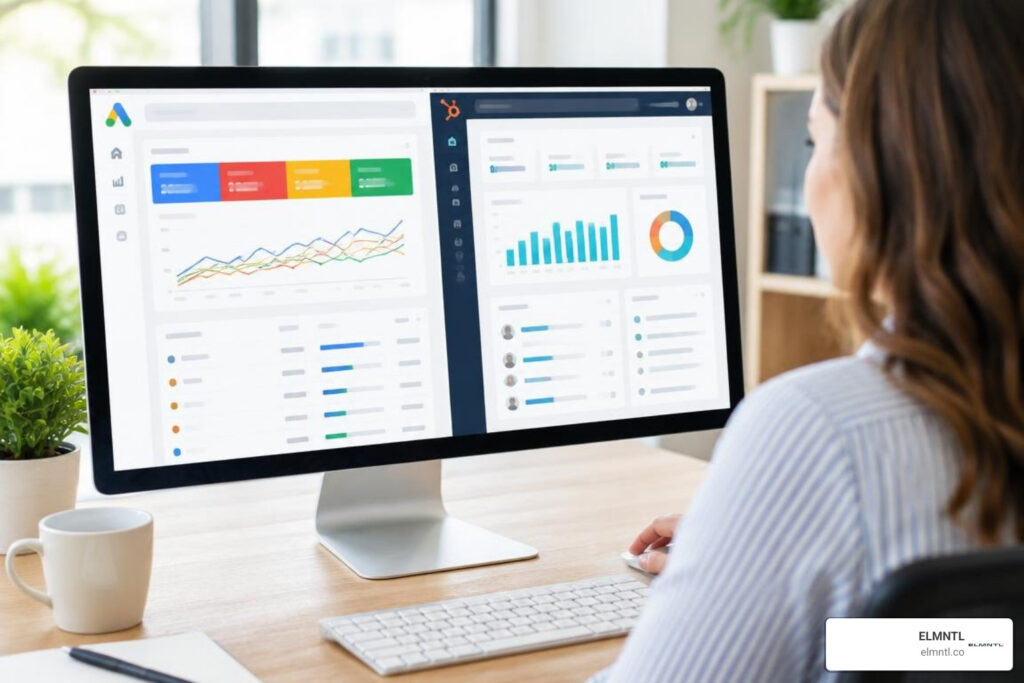
Why Google AdWords and HubSpot Work Better Together
To manage a Google AdWords HubSpot integration, connect an individual Google Ads account in HubSpot, make sure the connecting user has HubSpot Publish access and Google Ads Admin access, then confirm your campaign URLs and tracking settings are intact. Once connected, HubSpot can bring ad performance, leads, CRM activity, and revenue signals into one workflow.
That matters because clicks are not the goal. Qualified leads, sales conversations, and closed revenue are.
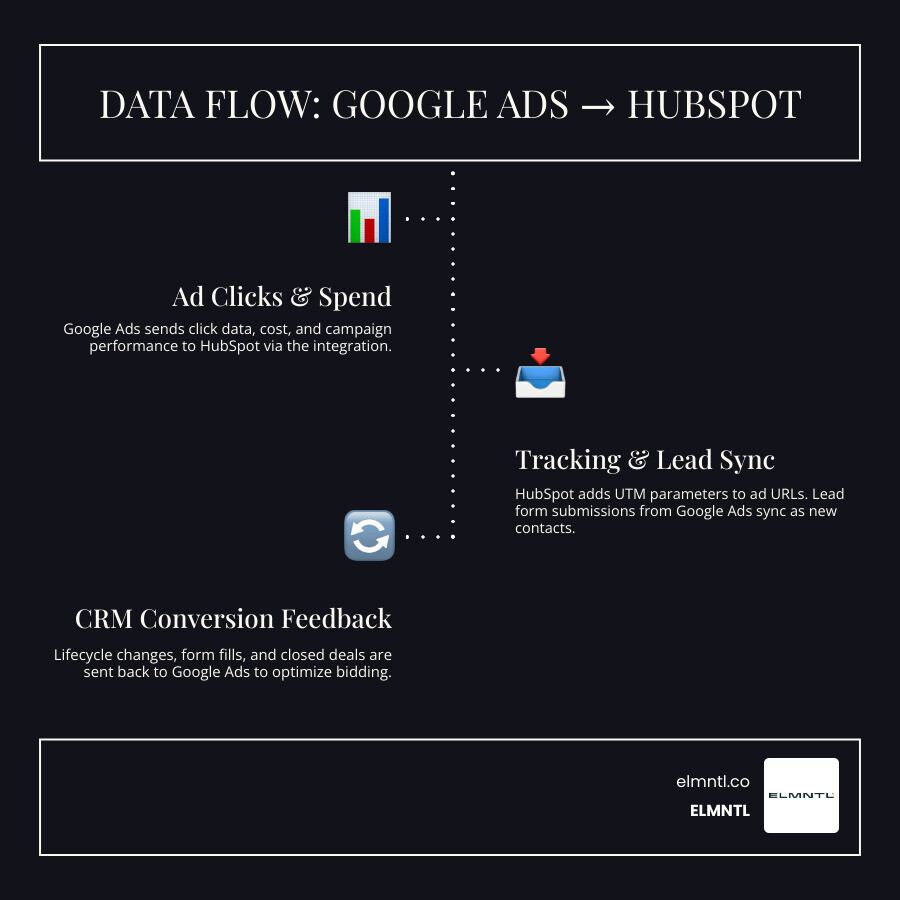
With the integration, you can:
- Track supported Google Ads campaigns in HubSpot and connect spend to CRM outcomes.
- Automatically add HubSpot tracking parameters to ad URLs for clearer attribution.
- Sync Google Ads Lead Form submissions into HubSpot contacts.
- Send key CRM events, such as form submissions, lifecycle-stage changes, and closed deals, back to Google Ads as conversion signals.
- Build audience lists from HubSpot data for remarketing and Customer Match campaigns.
- Create Google Search and Performance Max campaigns directly in HubSpot.
There are limits worth knowing upfront. HubSpot supports tracking and reporting for formats including Search, Shopping, Demand Gen, Responsive Display, and Performance Max, but Smart Campaigns are not supported. Differences between Google Ads and HubSpot numbers can also be normal, since each platform measures clicks, contacts, conversions, attribution windows, and reporting times differently.
Glossary for google adwords hubspot:
Connecting Your Google AdWords HubSpot Integration
Connecting your paid search engine with your CRM transforms raw click metrics into tangible revenue pipelines. With over 121,000 installs on the HubSpot Marketplace, the Google Ads integration is one of the most widely adopted tools for performance marketers. However, getting the setup right requires adhering to specific technical prerequisites so that data flows cleanly in both directions.
To properly Connect your Google Ads account to HubSpot, you must understand user permission hierarchies, browser settings, and account structures before initiating the OAuth handshake.
Account Prerequisites and User Permissions
Before attempting to authenticate the integration, verify the following core prerequisites:
- Individual Account Requirement: You must connect an individual Google Ads account. Manager Accounts (MCCs) cannot be linked directly to HubSpot. If you manage multiple ad accounts under an MCC, each child account must be authenticated individually.
- User Roles: The person connecting the tools needs Publish access to the Ads tool in HubSpot and Admin access to the specific Google Ads account. If the authenticating user lacks administrative rights on the Google side, conversion event syncing and auto-tracking template injection will fail.
- Google Ads Operating Mode: Your account must be operating in Expert Mode. If your account is running in Smart Mode, switch to Expert Mode within Google Ads by navigating to Tools & Settings and selecting “Switch to Expert Mode.” HubSpot cannot track accounts restricted to Smart Mode.
- Browser Configuration: Disable ad-blockers and privacy extensions in your browser during the initial connection process. These extensions frequently intercept OAuth tokens and block HubSpot’s API calls.
- Account Health: Ensure the Google Ads account has valid billing information and is not paused, cancelled, or flagged for policy violations.
Step-by-Step Google Ads Setup in HubSpot
Setting up the integration takes only a few minutes when all permissions are verified.
- Navigate to Settings: Log into your HubSpot portal. Click the Settings gear icon in the top navigation bar, then scroll down the left sidebar to Marketing > Ads.
- Connect Account: Click the Connect account button in the top right corner. In the dialog box, select Google Ads.
- Authenticate: A pop-up window will prompt you to log into your Google Account. Choose the email associated with your Google Ads Admin role and grant all requested permissions to HubSpot.
- Select Accounts: Choose the specific Google Ads account(s) you wish to link. If you manage multiple brands within HubSpot, assign each ad account to its corresponding brand domain.
- Enable Auto-Tracking: Ensure the Auto-tracking toggle is switched ON. This allows HubSpot to apply tracking templates to your campaigns.
- Confirm Sync Settings: Verify currency and time zone alignment between both platforms. Mismatched time zones are a leading cause of daily reporting discrepancies.
Supported Campaign Types and URL Tracking Mechanics
HubSpot’s Ads tool provides tracking, attribution, and reporting across major paid search formats, but it does not support every campaign style in Google’s ecosystem. Understanding these limitations prevents broken attribution models and missing contact records.
Supported vs. Unsupported Ad Formats
HubSpot tracks ad spend, clicks, impressions, and conversions for most high-intent campaign types. However, automated formats that obfuscate destination URLs or operate outside standard tracking templates face limitations:
| Campaign / Ad Format | HubSpot Tracking Status | Reporting Capabilities | Limitations / Notes |
|---|---|---|---|
| Google Search Ads | Fully Supported | Impressions, Clicks, Spend, Contacts, ROI | Responsive Search Ads fully supported |
| Performance Max (PMax) | Fully Supported | High-level metrics, Contact Attribution, Deal sync | Asset-level reporting is managed inside Google |
| Dynamic Search Ads (DSA) | Fully Supported | Full funnel attribution and keyword reporting | Dynamic landing pages must include HubSpot tracking script |
| Shopping Campaigns | Fully Supported | Product-level spend and revenue tracking | Requires Merchant Center alignment |
| Demand Gen Campaigns | Supported | Clicks, Spend, CRM contact creation | Replaces legacy Discovery campaigns |
| Responsive Display Ads | Supported | Display placement clicks and conversions | Third-party ad servers may strip parameters |
| YouTube Video Ads | Reporting Only | Aggregate Impressions, Views, Spend | Contact-level attribution is limited |
| Smart Campaigns | Not Supported | None | Must switch account to Expert Mode |
UTM Tracking and Auto-Tagging Configurations
When auto-tracking is enabled, HubSpot injects a tracking template at the campaign level within your Google Ads account. This process standardizes URL parameters across every ad without manual tagging.
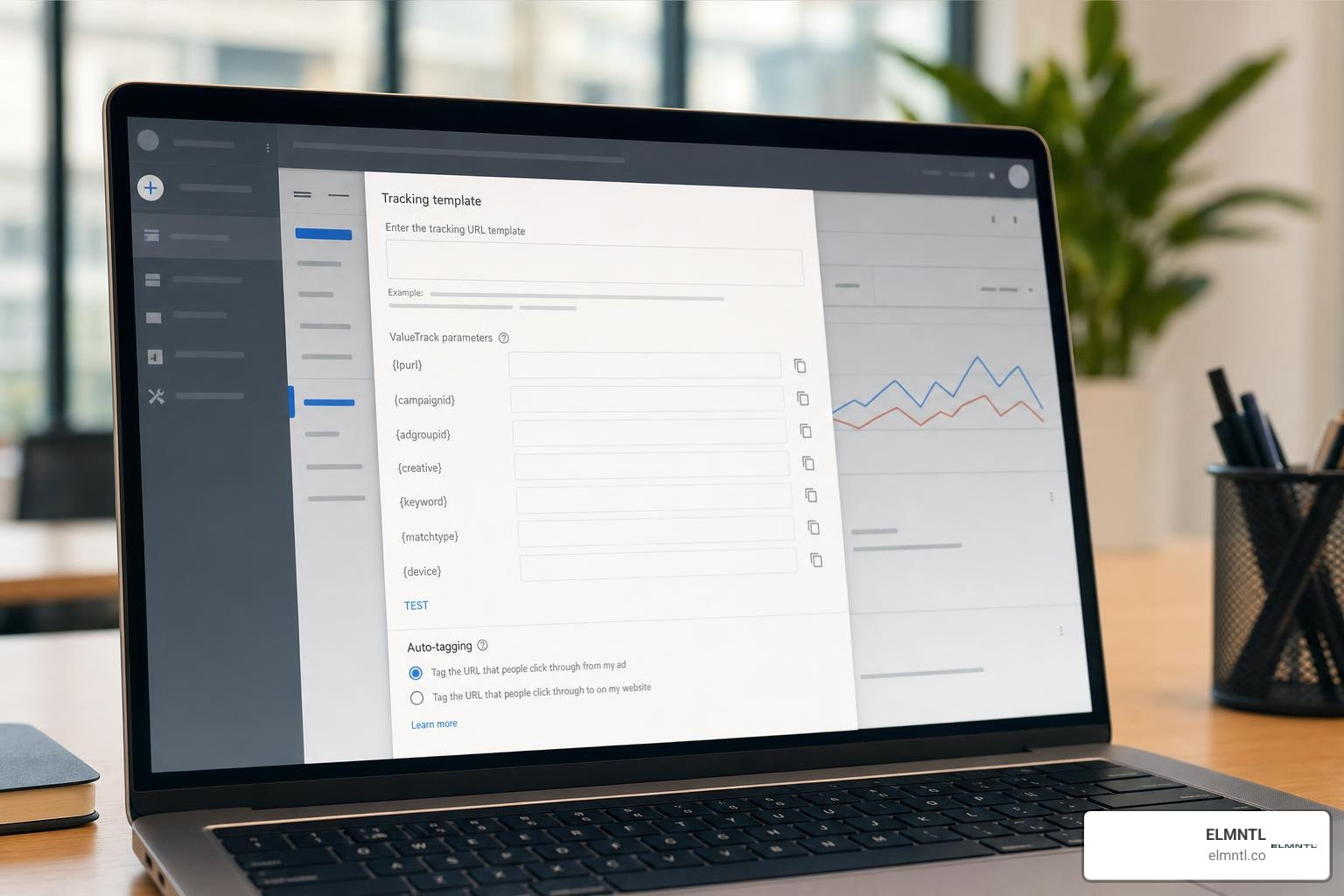
HubSpot appends parameters to your final URLs, including:
utm_source=adwordsutm_medium=ppcutm_campaign={_utm_campaign}utm_term={keyword}hsa_cam={campaignid}hsa_grp={adgroupid}hsa_ad={creative}hsa_kw={keyword}hsa_src={network}
To ensure parameter injection works smoothly:
- Use Final Destination URLs: Never use link shorteners (such as bit.ly) or URLs that execute 301 or 302 redirects. Redirects frequently strip the
hsa_*andutm_*query strings before the HubSpot tracking script on your site can capture them. - Avoid Ad-Level Custom Parameters: Leave ad-level and ad-group-level tracking templates blank unless specifically instructed. Adding custom tracking strings at lower levels can override HubSpot’s campaign-level template.
- Coordinate with Auto-Tagging: Google’s native auto-tagging (
gclid) works alongside HubSpot’s tracking parameters. Do not turn offgclidauto-tagging, as Google uses it for offline conversion imports and smart bidding feedback.
For deeper insights on how HubSpot parses these parameters across your ecosystem, review our guide on decoding HubSpot traffic sources and consult official documentation to Track and report on your Google ads in HubSpot.
Resolving Discrepancies and Syncing Conversions
One of the most frequent frustrations for growth teams is seeing different performance metrics when comparing Google Ads to HubSpot. In the HubSpot App Marketplace, where the Google Ads integration holds an average rating of 3.1 out of 5 across more than 200 reviews, data discrepancies are the single most cited issue.
Understanding why these numbers differ allows you to evaluate your true performance accurately.
Why Google Ads and HubSpot Metrics Differ
Google Ads and HubSpot are built to answer two fundamentally different questions. Google Ads asks, “How many ad engagement actions occurred?” while HubSpot asks, “Which net-new or existing people entered our CRM database?”
The primary drivers of metric divergence include:
- Clicks vs. Contacts: If a single user clicks your search ad three times in one week and submits a form each time, Google Ads logs three clicks and three conversions. HubSpot, by contrast, identifies that user by their email address and attributes the activity to one single contact record.
- Attribution Windows: Google Ads defaults to a 30-day click-through attribution window, crediting conversions back to the day the click occurred. HubSpot attributes the contact creation or deal conversion to the exact timestamp the form was submitted or deal stage changed, causing day-level reporting drift.
- Sync Latency: HubSpot queries the Google Ads API for aggregate performance metrics roughly every three hours. Recent campaign adjustments or same-day spikes will not align instantaneously.
- Ad-Blockers and Cookie Consent: If a user runs strict privacy blocking software, Google Ads may record the ad click, but the client-side HubSpot tracking script might be prevented from executing, leaving the contact source as direct or unknown.
- Time Zone Calibration: If your Google Ads account is set to Eastern Time (EST) and your HubSpot portal operates on Coordinated Universal Time (UTC), daily spend and conversion totals will show persistent daily mismatches.
To master your reporting accuracy, pair your CRM tracking with comprehensive strategies for using analytics to measure marketing success.
Syncing Lead Forms and Offline Conversions
Google Ads Lead Form Assets allow mobile and desktop users to submit their contact information directly within Google Search, YouTube, or Display surfaces without visiting your website.
HubSpot automatically syncs these submissions into contacts, but a common field-mapping error can disrupt data flow.
- The “Work Email” Pitfall: Google Ads Lead Forms offer fields for both “Email” and “Work Email.” HubSpot’s default lead sync integration specifically requires the standard “Email” field. If a campaign manager builds a form using “Work Email,” HubSpot will fail to detect or ingest the submission. Always configure your lead forms using the standard “Email” field.
- Offline Conversion Events: You can close the loop by sending lifecycle milestones back to Google Ads. Navigate to Marketing > Ads > Events in HubSpot to create conversion sync events. You can configure HubSpot to inform Google Ads whenever a contact becomes a Marketing Qualified Lead (MQL), Sales Qualified Lead (SQL), Opportunity, or Closed Won Deal. Google’s Smart Bidding algorithms then use this downstream data to optimize bidding toward high-converting buyer profiles.
If you encounter persistent sync drops, consult the community troubleshooting thread for Google Ads Lead Forms not syncing with HubSpot to verify webhook triggers and API permissions.
Leveraging CRM Data to Optimize Google Ads Performance
The true power of integrating Google Ads with HubSpot lies in unlocking first-party CRM data to steer Google’s machine learning algorithms.
Building High-Impact Audiences with Google AdWords HubSpot Data
Instead of relying solely on broad in-market signals, you can sync granular HubSpot contact lists directly into Google Ads Audience Manager for Customer Match and remarketing.
- Lifecycle-Stage Targeting: Create an audience of active open deals and serve them search ads highlighting customer proof points, case studies, or security certifications to accelerate deal velocity.
- Customer Match Lookalikes: Build a dynamic HubSpot active list of your highest-value customers based on closed deal amount or customer lifetime value. Push this list to Google Ads to seed lookalike audience generation for Performance Max and Demand Gen campaigns.
- Exclusion Audiences: Create an active list of existing customers and current employees, then apply it as an exclusion list on non-brand acquisition campaigns. This prevents wasting ad budget on clicks from people who have already bought from you.
- Re-engagement Campaigns: Target churned accounts or dormant leads whose lifecycle stage has remained stagnant for over 90 days with tailored promotional messaging.
To build structured lists that convert, review our comprehensive framework for HubSpot lead generation strategies.
Measuring Closed-Loop ROI Across the Funnel
Traditional PPC dashboards stop at cost-per-click (CPC) and cost-per-lead (CPL). By unifying Google Ads with HubSpot’s CRM deals pipeline, you gain visibility into true Return on Ad Spend (ROAS) and customer acquisition cost (CAC).

When a prospect clicks an ad, converts on a landing page, enters your sales pipeline, and signs a contract, HubSpot traces that revenue back to the specific campaign, ad group, and keyword. This allows marketing teams to identify keywords that generate inexpensive leads but zero closed revenue, as well as high-CPC terms that consistently yield high-margin enterprise contracts.
Understanding this full trajectory helps you evaluate what ROI is and why tracking it matters across every stage of business growth.
Creating Search and Performance Max Campaigns in HubSpot
You do not always need to navigate the Google Ads UI to launch targeted campaigns. HubSpot provides an in-app campaign builder designed to streamline setup, creative generation, and post-conversion automation.
To learn how this fits into your broader inbound architecture, read our guide on mastering campaigns in HubSpot.
Managing Google AdWords HubSpot Search Campaigns
Creating responsive search campaigns directly within HubSpot enables you to tie ad creation to CRM automation workflows in a single interface.
- Initiate Campaign: In HubSpot, go to Marketing > Ads and click Create ad campaign. Select Search ad.
- Select Ad Account & Network: Choose your connected Google Ads account and select whether to include the Google Search Partner network.
- Craft Ad Creative: HubSpot allows you to draft Responsive Search Ads by entering landing page URLs, up to three headline variations, and two description fields. You can also utilize HubSpot’s built-in AI copywriting tools to generate dynamic headline variations based on page context.
- Keyword Management: Enter targeted keywords using Exact (
[keyword]) or Phrase ("keyword") match types. Add negative keywords directly within this step to filter out unqualified search queries. - Set Budgets and Bidding: Define your daily budget and select your bidding strategy (e.g., Maximize Clicks or Maximize Conversions).
- Configure CRM Automation: Under the Automation tab, specify follow-up rules. You can automatically enroll contacts who click or convert on the ad into specific nurturing workflows or assign them directly to sales reps.
For complete step-by-step instructions, consult HubSpot’s documentation to Create Google search ad campaigns in HubSpot.
To ensure the traffic you generate converts efficiently, consider our recommendations for maximizing your Google Ad conversions.
Launching AI-Driven Performance Max Campaigns
Performance Max (PMax) allows advertisers to access Google’s entire ad inventory (Search, YouTube, Display, Discover, Gmail, and Maps) from a single campaign.
When creating PMax campaigns in HubSpot:
- Asset Groups: Upload multiple image orientations, logos, headlines, long headlines, and video assets. Google’s AI tests combinations to identify high-performing creative variations across each placement.
- Audience Signals: Supply your synced HubSpot Customer Match lists as audience signals. This guides Google’s AI to identify new prospects who share characteristics with your best customers.
- Budget Allocation: Set realistic daily budgets that give the machine learning model sufficient conversion volume to optimize. Allow at least two to three weeks for the initial learning phase before making major structural edits.
Frequently Asked Questions About Google AdWords and HubSpot
Why is my connected Google Ads account marked as inactive or disconnected?
An ad account is typically marked inactive in HubSpot for three reasons:
- OAuth Expiration: Google security tokens expire periodically or when the user who connected the account updates their Google password. To fix this, navigate to Settings > Marketing > Ads, locate the account, click Actions > Reconnect, and re-authenticate your Google Admin credentials.
- Payment Method Failures: If your billing card expires or a payment fails in Google Ads, the account pauses, triggering an inactive flag in HubSpot.
- Policy Suspensions: Unresolved ad policy or trademark violations will cause Google to suspend the ad account. Once resolved inside Google Ads, the active status will restore in HubSpot.
Can I link a Google Ads manager account (MCC) directly to HubSpot?
No. HubSpot does not support direct connections to Manager Accounts (MCC). You must authenticate the individual child ad accounts where active billing and campaigns reside. If you operate an agency or manage multiple subsidiary brands, link each individual Google Ads account to its respective HubSpot portal or Brand Domain.
HubSpot does offer an optional connection to its own manager account (Customer MCC) for enterprise support and beta features, but this is separate from connecting your personal ad accounts.
Why are leads from Google Ads Lead Forms not appearing in HubSpot?
Lead form sync failures almost always stem from field mapping issues:
- Ensure the lead form in Google Ads uses the default “Email” field rather than custom fields like “Work Email” or “Business Email.”
- Verify that the lead form extension is associated with active campaigns.
- Confirm that the user who authenticated the HubSpot integration maintains active Admin access in the Google Ads account.
- Check that your HubSpot subscription has sufficient marketing contact capacity.
Conclusion: Maximize Paid Search ROI with Unified Marketing
Aligning paid search with your CRM bridges the gap between top-of-funnel clicks and closed revenue. By integrating Google Ads with HubSpot, you eliminate manual data entry, optimize smart bidding using real pipeline stages, and target high-value audience segments with precision.
Achieving strong returns on ad spend requires continuous optimization of tracking setups, creative assets, landing pages, and sales follow-up workflows. If you are looking to scale your pipeline through comprehensive integrated marketing strategies, partner with a dedicated agency that knows how to turn ad clicks into sustained business growth.