

How to Add Marketing Contacts in HubSpot Without Losing Track of Costs
To add a marketing contact in HubSpot, go to CRM > Contacts, select Create contact, enter the person’s details, and check Set this contact as a marketing contact before saving. For contacts already in your CRM, select them from the contacts page and use the bulk action to set their marketing status.
Marketing contacts count toward your HubSpot contact tier. Non-marketing contacts can stay in your CRM without counting toward that tier, so it pays to choose carefully before an import or campaign. Whenever you add marketing contacts, HubSpot monitors your database usage against your plan limits. This guide covers the practical steps to add marketing contacts in HubSpot while keeping your contact tier costs under control.
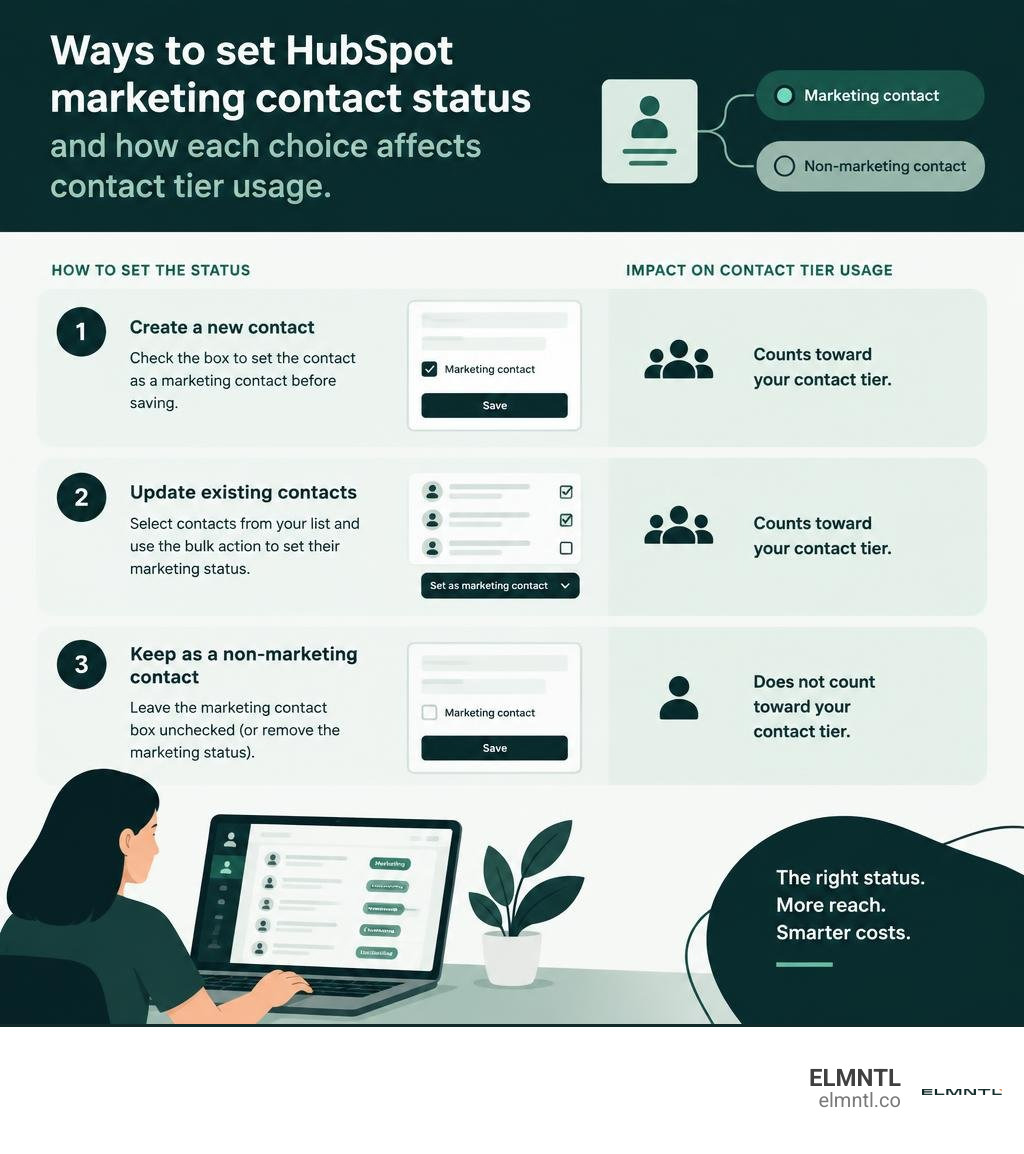
Aligning your contact management with an effective HubSpot lead generation framework, precise HubSpot customer segmentation, and clean synchronization when connecting HubSpot to Mailchimp keeps your lists healthy and cost-effective.
Understanding Marketing vs. Non-Marketing Contacts in HubSpot
When HubSpot revamped its pricing structure, it solved one of the biggest headaches in CRM management: paying for records you never intend to email. Before this shift, every record stored in your database contributed to your software bill, whether they were an active sales prospect, a customer support ticket submitter, or a partner vendor.
Today, HubSpot separates records into two distinct categories: marketing contacts and non-marketing contacts.
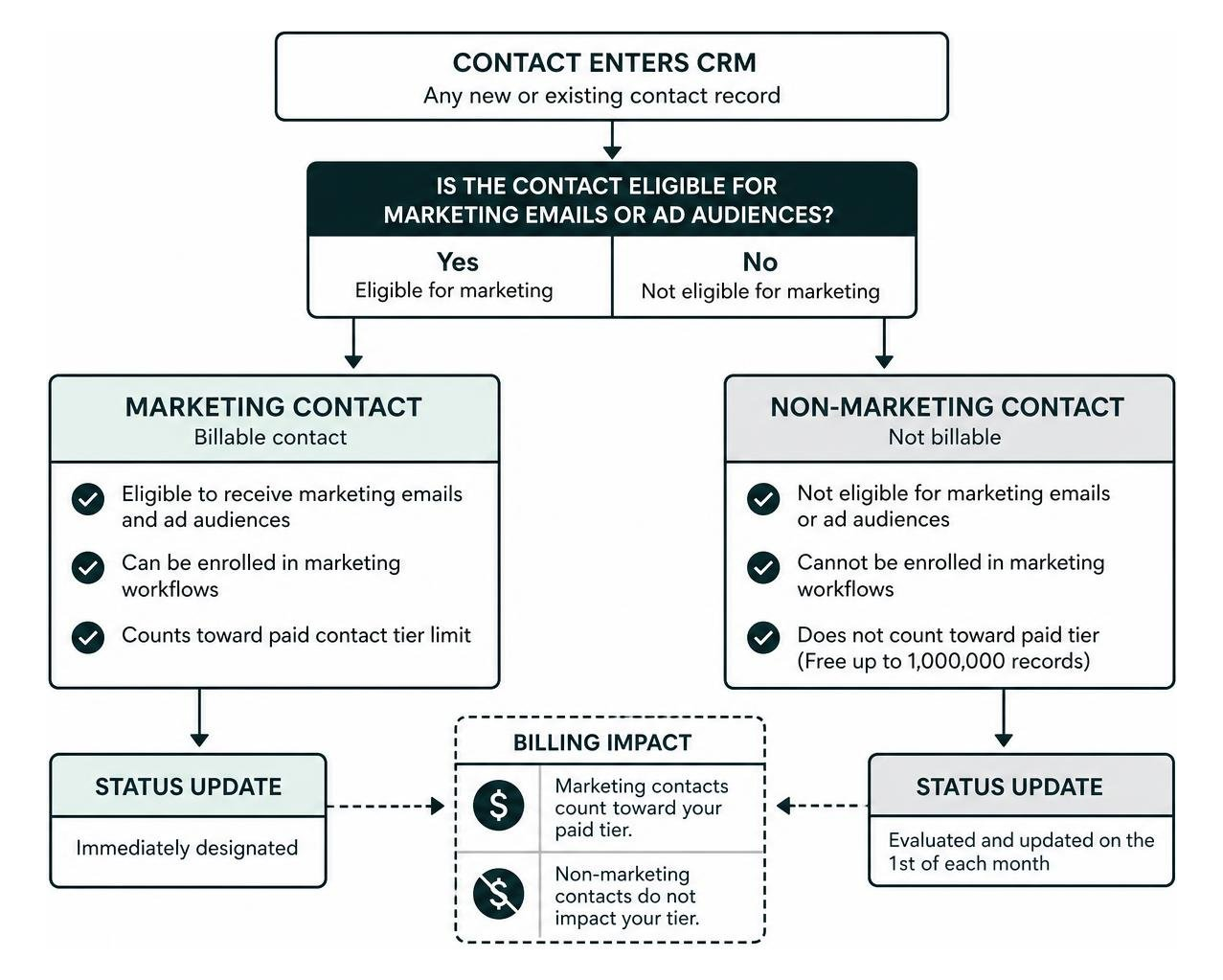
Marketing contacts are records that you designate as eligible to receive marketing emails and targeted ad audience campaigns. These are the billable records that count directly toward your subscription tier limit.
Non-marketing contacts are individuals you store in your CRM for sales outreach, operational communications, or customer service. You can store up to 1,000,000 non-marketing contacts in your free CRM database without incurring extra software charges.
To review your account setups and property configurations, consult the official HubSpot documentation on marketing contacts. Aligning this classification with a comprehensive lead generation strategy ensures you only invest your marketing tier capacity into genuinely qualified leads.
| Feature / Capability | Marketing Contacts | Non-Marketing Contacts |
|---|---|---|
| Counts Toward Paid Contact Tier | Yes | No (Free up to 1,000,000 records) |
| Receive Marketing Hub Mass Emails | Yes | No |
| Included in Retargeting Ad Audiences | Yes | No |
| Enrolled in Marketing Workflow Actions | Yes | No |
| Receive 1-to-1 Sales Emails | Yes | Yes |
| Receive Transactional & System Emails | Yes | Yes |
| Log Deals, Tickets, and Form Submissions | Yes | Yes |
| Status Update Processing | Immediately designated | Evaluated and updated on the 1st of each month |
How to Add Marketing Contacts HubSpot: Step-by-Step
Setting your contact statuses correctly prevents unexpected software expenses while keeping your marketing campaigns firing on schedule. Depending on how your team operates, you can assign marketing status individually, in bulk batches, through data imports, or via automation.
For additional reference on platform nuances, check the HubSpot guide to setting contacts as marketing. Pairing these practices with sophisticated customer segmentation keeps your contact tiers clean and focused.
Manually Setting Status on Individual Contact Records
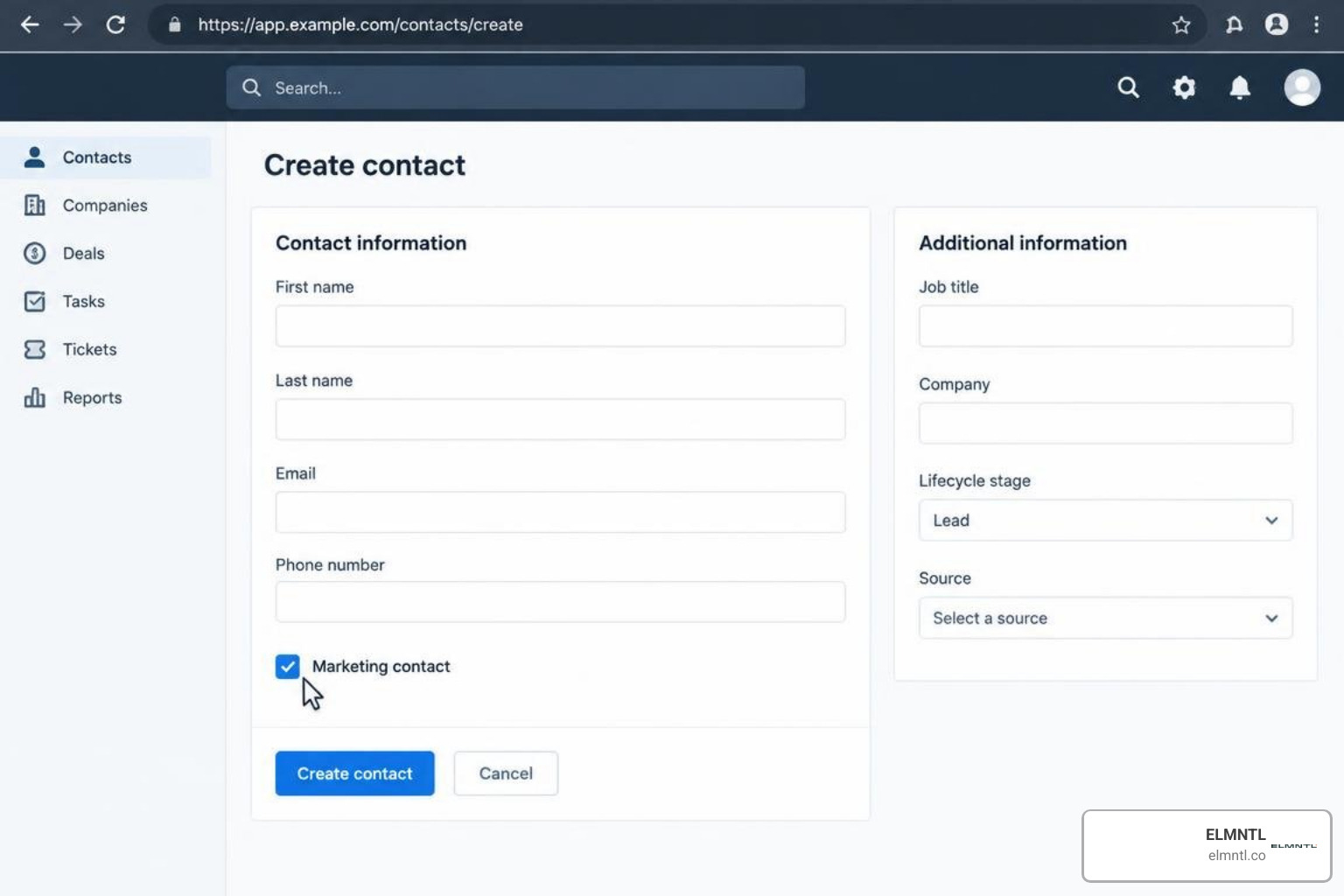
When sales development representatives or account managers add individual records after a call or networking event, they can assign status right away during creation:
- Navigate to CRM > Contacts in your HubSpot portal.
- Click Create contact in the upper-right corner.
- In the slide-out panel, enter the contact’s email, first name, last name, and relevant properties.
- Scroll down to locate the checkbox labeled Set this contact as a marketing contact.
- Check the box and click Create.
If the record already exists and you simply need to update their standing:
- Open the individual contact record.
- In the left sidebar pane, click Actions and select Set as marketing contact.
- Confirm your choice in the modal prompt.
Bulk Updating Existing Contacts from Views and Lists
If you have a collection of unassigned or previously non-marketing records that you now want to include in an upcoming campaign, you can update them all at once from your contacts index view:
- Navigate to CRM > Contacts.
- Select your desired saved view, or apply custom filters (such as Lifecycle Stage, Form Submission, or Recent Activity).
- Select the checkboxes next to the contacts you wish to update. To select every record across multiple pages, click the top checkbox and choose Select all [number] contacts.
- At the top of the table, click the More dropdown menu and choose Set as marketing contacts.
- Review the confirmation dialog showing how many records will be updated, then confirm.
Bulk Import Files to Add Marketing Contacts HubSpot
When importing trade show attendee lists, partner leads, or webinar signups, you can designate all records in the spreadsheet as marketing contacts during the upload wizard.
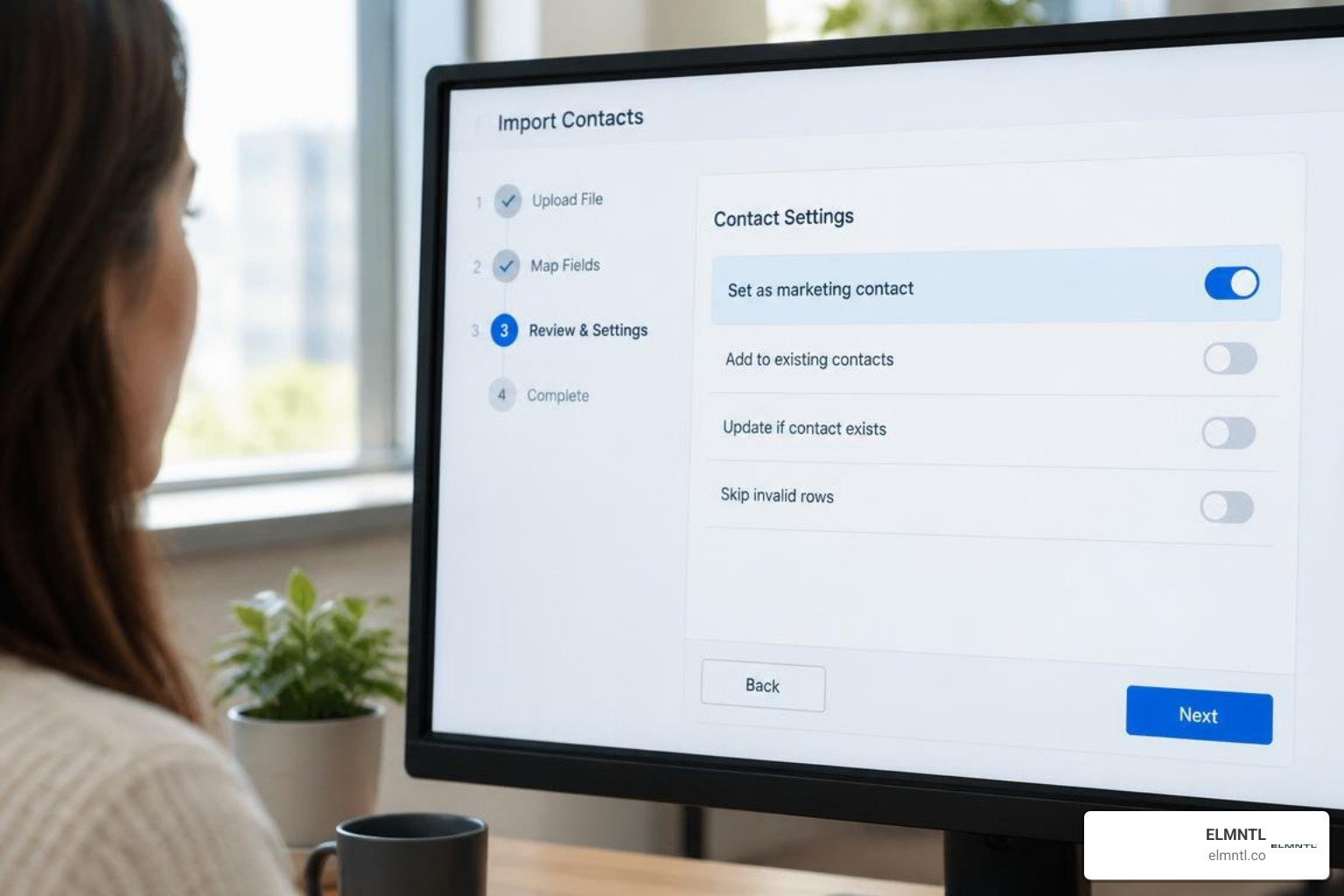
To perform an import with marketing contact status:
- Navigate to CRM > Contacts and click Import in the upper-right corner.
- Click Start an import, select File from computer, and choose One file > One object > Contacts.
- Upload your CSV, XLSX, or XLS file.
- Verify your column mappings to ensure properties like Email, First Name, and Lifecycle Stage match HubSpot fields.
- In the final Details step, name your import file and look for the marketing contacts section.
- Toggle the option labeled Set these contacts as marketing contacts.
- Confirm that you have the proper legal opt-in consent to market to these individuals, check the compliance agreement box, and click Finish import.
Use Workflows to Automatically Add Marketing Contacts HubSpot
For teams using Marketing Hub Professional or Enterprise, automated workflows are the most reliable way to govern contact status dynamically. Instead of relying on manual data entry, you can build trigger rules that mark contacts as marketing as soon as they express buying intent.
You can connect these automated triggers directly with automated email workflows to launch nurture sequences instantly.
- Go to Automation > Workflows and select Create workflow > From scratch > Contact-based.
- Set up enrollment triggers that represent genuine marketing interest, such as:
- Form submission on a high-intent landing page (e.g., Demo Request or Pricing Guide).
- Lifecycle stage changing to Marketing Qualified Lead (MQL).
- Lead score exceeding a designated threshold.
- Click the + plus icon to add an action.
- Under CRM properties, select Set marketing contact status.
- Set the value to Set as marketing.
- Review your workflow settings, turn on the workflow, and allow HubSpot to handle classification in real time.
Managing Default Marketing Status Across Forms and Integrations
Beyond direct CRM entry and native workflows, new leads constantly enter your database through forms, landing pages, connected software, and custom API pipelines. Managing these defaults prevents unexpected tier expansions.
In your native HubSpot form settings:
- Navigate to Marketing > Forms and edit your target form.
- In the form editor, click the Options tab.
- Locate the setting Set contacts created as marketing contacts.
- Toggle this switch ON for lead capture forms, or keep it OFF for internal support tickets, vendor inquiries, or employee feedback forms.
If you bring in data through external integrations, WordPress plugins, or custom web development, ensure your endpoints pass contact properties accurately. For developers building custom synchronization pipelines, HubSpot’s batch create API endpoint (/crm/v3/objects/contacts/batch/create) accepts up to 100 records per request, with standard rate allowances of 100 to 190 requests per 10 seconds depending on your subscription tier.
Always map data parameters carefully when managing cross-channel marketing campaigns to prevent unverified leads from consuming valuable contact space.
Monitoring Tier Limits, Billing Cycles, and User Permissions
Proactive account administration keeps your team within budget while preventing surprise upgrade invoices.
Understanding Tier Allowances and Overages
Each HubSpot subscription tier includes a baseline allowance for marketing contacts:
- Free Plan: Includes up to 1,000 marketing contacts.
- Starter Plan: Starts at 1,000 marketing contacts. Additional packs of 1,000 contacts cost approximately $37.50 per month.
- Professional Plan: Starts at 2,000 marketing contacts. Additional packs of 5,000 contacts cost approximately $250 per month.
- Enterprise Plan: Starts at 10,000 marketing contacts. Additional packs of 10,000 contacts cost approximately $100 per month.
HubSpot automatically tracks your usage and sends alert emails to account billing contacts when you reach 75%, 90%, and 98% of your tier limit. If you exceed 100% of your tier, your account automatically upgrades to the next billing band for that billing cycle.
Tracking the Monthly Update Cycle
While setting a contact to Marketing takes effect immediately, downgrading a contact to Non-Marketing follows a specific calendar rule:
- Status changes from Marketing to Non-Marketing are staged in the property Marketing contact until next update.
- The platform clears these downgrades on the first of each month.
- Because tier limits reflect the maximum marketing contacts held during the billing period, plan database cleanups before the final day of the current month.
Controlling User Permissions
To ensure team members do not accidentally add unvetted lists that push your account into a higher pricing tier, restrict user access:
- Navigate to Settings > Users & Teams.
- Select the user or permission set you wish to adjust.
- Under the CRM permissions tab, toggle Marketing contacts access to off.
- Under Automation, restrict Workflow edit and publish rights so only senior administrators can create status-altering workflows.
Best Practices to Prevent Unexpected HubSpot Billing Increases
Managing your marketing contact database requires regular operational care. Follow these best practices to maintain database efficiency:
- Automate Unengaged Contact Downgrades: Build an active list of contacts who have not opened or clicked an email in 180 days. Use a scheduled workflow to set their status to non-marketing.
- Filter Out Hard Bounces and Unsubscribes: Once an email address hard bounces or unsubscribes from all communications, they can no longer receive marketing emails. Run a monthly cleanup workflow to switch these records to non-marketing.
- Verify Third-Party Lead Quality: When acquiring leads from prospecting tools or external enrichment platforms, verify and filter records before importing them. While external lead sources can provide affordable contact volume, blindly importing thousands of unverified records into HubSpot can increase your monthly CRM software bill.
- Audit Default Form Settings Quarterly: Periodically review all active forms and landing pages to ensure internal or customer service forms have not accidentally been configured to mark submissions as marketing contacts.
- Leverage Active Lists for Verification: Before launching major seasonal campaigns, check your active marketing lists against contact tier gauges in Account & Billing to confirm you have ample headroom.
Frequently Asked Questions About HubSpot Marketing Contacts
What happens if I exceed my HubSpot marketing contact limit?
If your marketing contact count exceeds your plan limit, HubSpot automatically upgrades your account to the next contact tier. You will receive notifications at 75%, 90%, and 98% capacity before this occurs. Once upgraded, your billing adjusts to reflect the new tier pricing for your remaining contract term.
When do marketing contact status downgrades take effect?
When you mark an existing marketing contact as non-marketing, the change does not reduce your billable contact count immediately. The record enters a pending state and officially converts to non-marketing on the first day of the following calendar month.
Can non-marketing contacts still receive one-to-one sales emails?
Yes. Non-marketing contacts can freely receive individual sales emails sent from connected Gmail or Outlook inboxes, log CRM activities, book meetings, submit forms, and receive automated transactional system emails.
Conclusion
Managing your marketing contact count effectively gives your business complete control over your marketing budget without restricting CRM growth. By taking advantage of HubSpot’s free storage for non-marketing records and reserving marketing contact designations for engaged leads, your organization can scale communication seamlessly.
Take time this week to audit your user permissions, verify your form defaults, and clean up unengaged contacts to ensure your HubSpot portal is operating at peak efficiency. A disciplined approach to integrated marketing strategies keeps your contact database lean, your campaigns targeted, and your software costs predictable.