

How to Schedule HubSpot Automated Reports
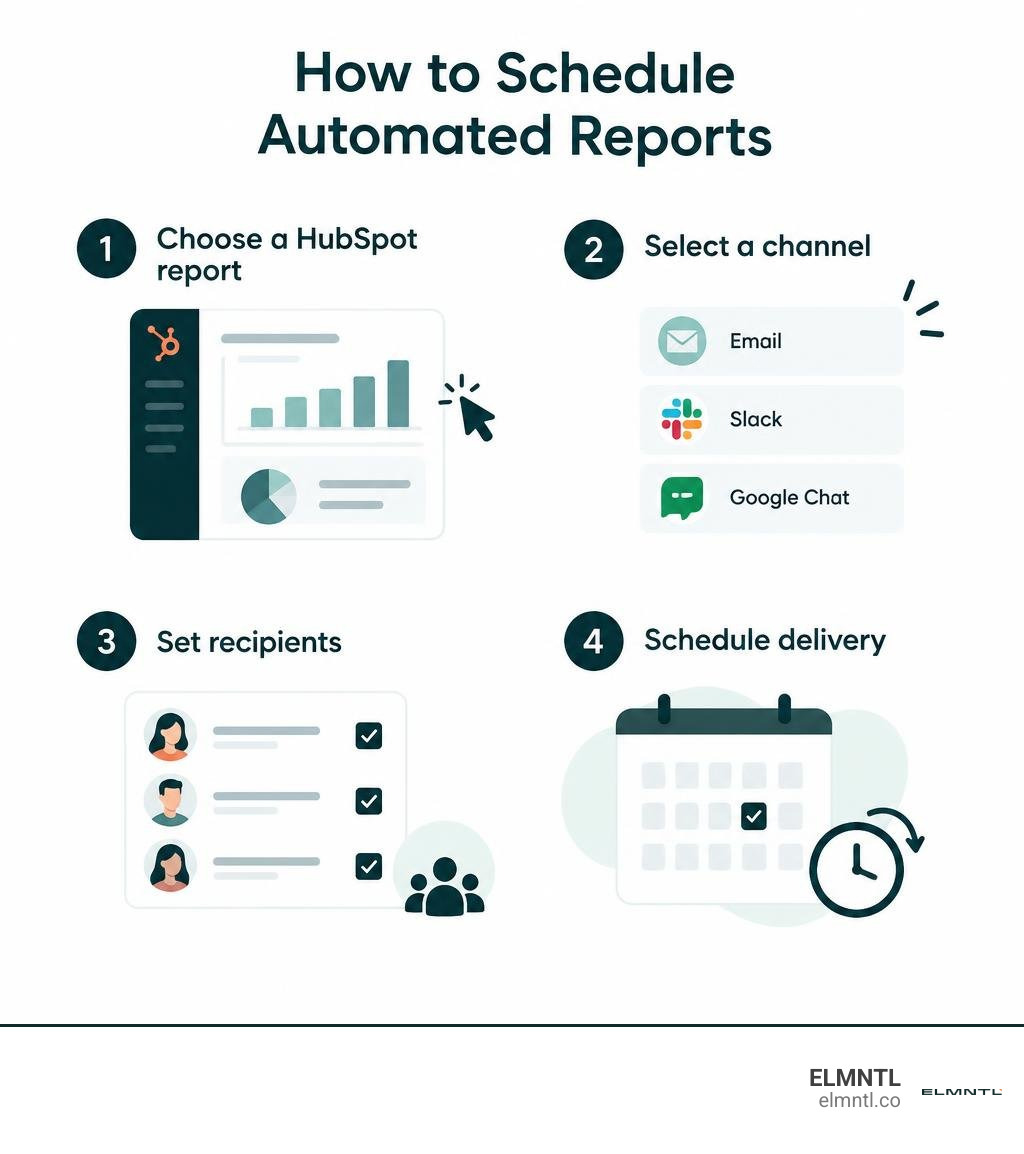
To automate report delivery, open Reporting > Reports in HubSpot and choose the report you want to share. Select Share via, pick email, Slack, or Google Chat, then set your recipients and a recurring schedule. You can do the same with a dashboard when stakeholders need several metrics in one update.
Start with one weekly dashboard for traffic, leads, pipeline, and customer feedback. It gives each team a shared view without asking someone to rebuild and send the numbers by hand.
Handy hubspot automated reports terms:
Why Automate Reporting Across Marketing, Sales, and Service?
When revenue operations stall, the culprit is rarely a lack of data. Instead, teams drown in spreadsheets, manually pulling numbers from disconnected platforms every Monday morning. Automating your reporting infrastructure connects marketing touchpoints, sales pipeline velocity, and customer support metrics into a continuous stream of actionable insight.
Manual data pulls introduce human error and waste valuable strategy hours. Automated delivery creates cross-functional alignment by ensuring leadership, sales managers, and marketing specialists review identical, real-time records. When data flows directly into the communication channels your team already uses, decision-making accelerates.
Integrating automated reporting also deepens the impact of your audience targeting. By coupling recurring reports with effective customer segmentation strategies, your team can monitor high-value cohort behaviors without building manual filters each week.
| Capability | Manual Reporting | HubSpot Automated Reporting |
|---|---|---|
| Delivery Mechanism | Manual exports and slide creation | Scheduled Email, Slack, Google Chat |
| Data Consistency | Prone to copy-paste errors | Direct sync with live CRM records |
| Time Investment | 3 to 5 hours per week per team | Set once, automatic recurring delivery |
| Actionability | Retrospective, often outdated | Real-time tracking with proactive alerts |
| Cross-Hub Blending | Difficult across separate spreadsheets | Unified multi-object dashboards |
Tier Requirements: Starter vs Professional vs Enterprise
HubSpot structures reporting capabilities by tier across its product hubs. Understanding these subscription boundaries prevents roadblocks when designing your automated measurement workflows.
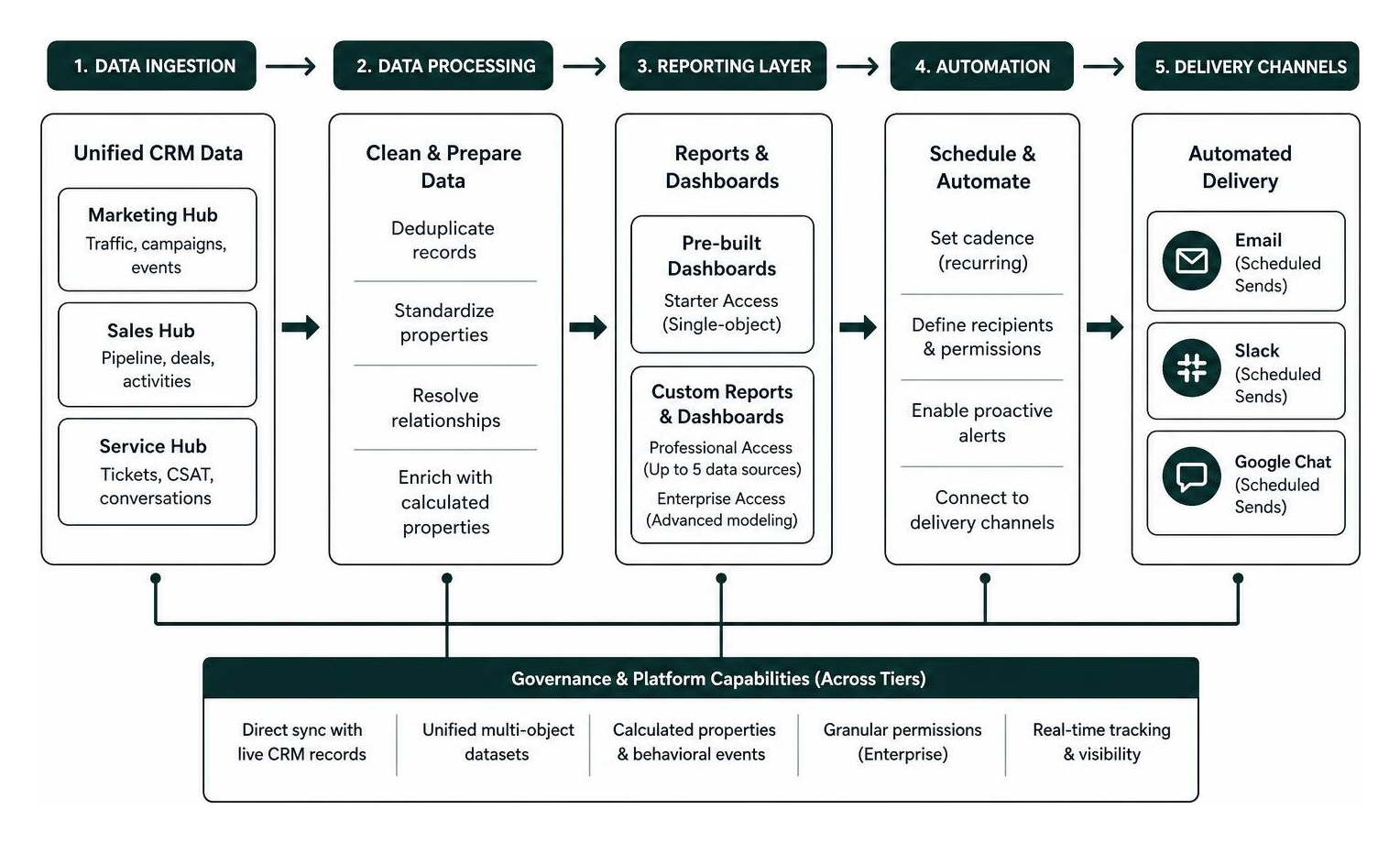
- HubSpot Starter: Provides foundational access to pre-built dashboards and single-object reports. You can schedule basic email sends for standard dashboard views, but custom multi-object report creation is restricted.
- HubSpot Professional: Unlocks the custom report builder, allowing you to combine up to five distinct data sources. It supports automated scheduling across email and collaboration apps, custom behavioral event tracking up to 10 million events, and calculated properties. Review how to report on performance across tools to maximize these mid-tier capabilities.
- HubSpot Enterprise: Delivers advanced multi-touch attribution modeling, custom objects, journey analytics, and behavioral event tracking scaled up to 100 million events. Enterprise accounts provide granular dataset permissions and advanced AI forecasting capabilities.
Essential HubSpot Automated Reports for Marketing, Sales, and Service

To build a high-impact dashboard, focus on metrics that directly reflect business health rather than vanity numbers. By reviewing real-world results, such as how Corinium Global Intelligence scales up with HubSpot, we see that unified cross-hub tracking provides clear operational clarity.
- Traffic Analytics and Source Breakdown: Measures overall digital reach, new visitor sessions, bounce rates, and channel-specific conversion paths.
- Landing Page Conversion Performance: Highlights which assets convert organic and paid traffic into qualified contacts.
- Lifecycle Stage Funnel Velocity: Tracks contact progression from Subscriber to Lead, MQL, SQL, and Customer, highlighting friction points. Pair this with your strategy for analyzing lead generation performance.
- Sales Pipeline and Deal Forecasts: Displays open deal values by stage, sales rep win rates, average deal cycle length, and weighted revenue projections.
- Customer Feedback and Net Promoter Score (NPS): Monitors satisfaction trends, ticket response times, and post-onboarding sentiment to mitigate churn.
- Campaign ROI Performance: Evaluates asset-level engagement across marketing channels. Explore HubSpot Academy’s lesson on analyzing your HubSpot campaigns to align tracking properties properly.
Multi-Touch Attribution and Event-Based Reports
Understanding which marketing channels drive closed-won revenue requires moving beyond simple first-touch or last-touch models. Multi-touch attribution distributes revenue credit across various interactions, including initial organic visits, content downloads, webinar attendance, and sales meetings.
Event-based reporting captures custom user actions across your web ecosystem. By implementing custom marketing event tracking, you can log clicks, video completions, and tool interactions directly into contact timelines.
When structuring these models, it is essential to understand the custom report builder to ensure that relationships between primary objects like Deals and secondary objects like Marketing Events calculate conversions accurately.
Step-by-Step: Building Custom and AI-Powered Reports

Creating tailored reports in HubSpot can be achieved through manual multi-object configuration or generative AI tools.
To create reports manually, use the drag-and-drop builder:
- Navigate to Reporting > Reports and click Create report.
- Select Custom report builder to begin configuring your dataset. Follow the official guide to create reports with the custom report builder.
- Choose your primary data source (such as Deals), then select secondary sources (such as Contacts and Companies).
- Drag your dimensions (categorical data like Deal Stage) onto the X-axis and measures (numerical data like Amount) onto the Y-axis.
- Use the Smart Chart feature to auto-suggest optimal visual layouts, or manually select bar, line, donut, or pivot table formats.
For accelerated setups, HubSpot provides generative AI capabilities directly inside the report creation suite. Learn how to create reports using AI by following these steps:
- Navigate to Reporting > Reports and click Create with AI.
- Input a clear, natural-language prompt containing your target object, metrics, and date ranges (e.g., “Show me total deal revenue won by sales rep this quarter compared to last quarter”).
- Review the AI-generated preview, confirm filter logic, and adjust visualization types before saving the report to your dashboard.
Fine-Tuning Metrics in the Interactive Report Viewer
Once a report is created, you can use the report viewer to explore data without altering underlying configurations permanently.
Within the viewer, you can:
- Switch between up to five unique visual configurations for a single report.
- Apply temporary date filters, pipeline breakdowns, and owner splits.
- Identify anomalies and automated trend lines powered by HubSpot AI.
- Export raw, unsummarized datasets for offline audit needs.
Mastering how to interact with reports in the report viewer ensures that stakeholders can answer follow-up questions during reviews without requesting new dashboards from operations teams.
Setting Up Scheduled Deliveries and Dashboard Alerts
Automating data delivery replaces passive status meetings with proactive, scheduled notifications. Sending updates directly to team channels ensures visibility across all departments.
Pair your delivery schedules with ongoing SEO and conversion tracking. By consistently monitoring organic traffic sources, marketing teams can quickly spot algorithm shifts or traffic drops directly from their scheduled Monday summaries.
How to Schedule HubSpot Automated Reports via Email, Slack, and Google Chat
HubSpot allows users to distribute standalone reports or complete dashboards across multiple digital communication channels. Follow the documentation to share or export reports and dashboards using the steps below:
- Navigate to Destination: Open the dashboard or report you want to schedule.
- Access Sharing Settings: Click Share via in the upper-right corner and select Email, Slack, or Google Chat.
- Define Recipients:
- Email: Select internal HubSpot users or enter verified external email domains.
- Slack / Google Chat: Select the target public channel, private channel, or individual user.
- Set Recurrence: Choose delivery frequency (Daily, Weekly, or Monthly), specifying the exact day of the week, time, and timezone.
- Choose Attachment Formats: When sending emails, select whether to include dashboard visual summaries or attach downloadable data files (CSV, Excel, or PNG image files). CSV/Excel exports are supported for single-object, event-based, and journey reports.
- Confirm and Schedule: Save the automated schedule. HubSpot compiles the data snapshot two hours before delivery.
Managing and Editing Recurring Delivery Workflows
Over time, team rosters, meeting cadences, and operational priorities shift. Managing active recurring sends ensures sensitive company metrics reach the correct inboxes:
- Access Active Schedules: Navigate to Reporting > Reports or Dashboards, select Actions, and choose Manage recurring emails (or recurring Slack/Google Chat messages).
- Modify Delivery Settings: Update recipient lists, alter delivery days, or swap output formats.
- The Two-Hour Rule: If you need to edit or delete a scheduled delivery, make updates at least two hours before the execution window. HubSpot captures the reporting snapshot two hours prior to sending, so adjustments made inside that buffer apply to the subsequent delivery cycle.
Native HubSpot Automation vs. Third-Party BI Tools
While native HubSpot automated reports provide seamless CRM visibility, complex enterprise stacks often require external Business Intelligence (BI) platforms. Connecting external advertising channels, bespoke app databases, and website metrics may call for third-party synchronization tools.
For standard campaign measurement and lead nurture tracking, native reports pair perfectly with automated email marketing workflows. However, if your team blends complex Google Analytics multi-property data with ERP systems, specialized tools offer deeper flexibility.
| Metric / Feature | Native HubSpot Reports | Third-Party BI (Looker Studio, Databox, Supermetrics) |
|---|---|---|
| Setup Speed | Instant; native to your CRM data | Moderate; requires API connectors and schemas |
| Data Latency | 10 to 15 minutes; refreshes every 2 hours | Dependent on connector schedule (hourly to daily) |
| Non-CRM Data Blending | Limited without custom integrations | Advanced; blends SQL, Google Analytics, ad spend |
| Visualization Variety | Standard business charts and pivot tables | Highly customizable visual widgets and themes |
| Cost | Included in Pro/Enterprise tiers | Connector subscription fees + platform licenses |
Understanding Limitations of HubSpot Automated Reports
When designing automated reporting pipelines, keep native platform constraints in mind:
- Automatic Refresh Cycles: Custom reports refresh data automatically every two hours. Manual refreshes can be triggered once every 15 minutes.
- Data Latency: Newly logged CRM activity requires 10 to 15 minutes to reflect in standard reporting widgets.
- Visual Row Limits: Non-table visual reports (bar charts, line graphs, donut charts) are capped at 1,000 unique rows of data for visual rendering performance. Table and pivot table views exceed this limit.
- External Recipient Ceilings: You can send scheduled emails to a maximum of 100 non-HubSpot users per day, and external recipient domains must be verified in your account settings.
- Breakdown Dimension Limits: Dimension breakdowns should contain under 100 unique values to avoid “Too many data points requested” rendering errors.
Frequently Asked Questions About HubSpot Automated Reports
Can I send automated HubSpot reports to team members without a HubSpot seat?
Yes. Professional and Enterprise subscriptions allow you to schedule automated reports and dashboards to non-HubSpot users. External recipients must belong to an email domain that has been verified within your HubSpot account settings. Scheduled email deliveries to external non-users are capped at 100 emails per day.
How often does HubSpot automatically refresh custom report data?
HubSpot custom reports automatically refresh with updated CRM data every two hours in the background. If you need immediate numbers before a presentation, you can manually trigger a report refresh once every 15 minutes from the report or dashboard interface.
What is the easiest way to connect Google Analytics with HubSpot for automated reports?
For high-level web tracking, installing the HubSpot tracking code on your external site automatically captures traffic sources and conversion paths alongside CRM records. If you require deep, blended analytics combining raw Google Analytics properties with offline deal records, third-party connectors like Databox, Supermetrics, or Looker Studio provide direct API pipes to blend both data streams into unified automated dashboards.
Conclusion: Streamlining Your Automated Reporting Strategy
Automating your HubSpot reporting workflows frees your team from manual data aggregation, eliminates status-meeting friction, and delivers clear revenue metrics directly to decision-makers. By selecting the right report types, establishing scheduled distributions across Slack and email, and respecting platform data limits, you create a responsive, data-backed operational engine.
At ELMNTL, we help organizations translate complex data architectures into predictable growth. Explore our approaches to integrated marketing strategy and reporting to refine your analytics workflows and scale your business with confidence.