
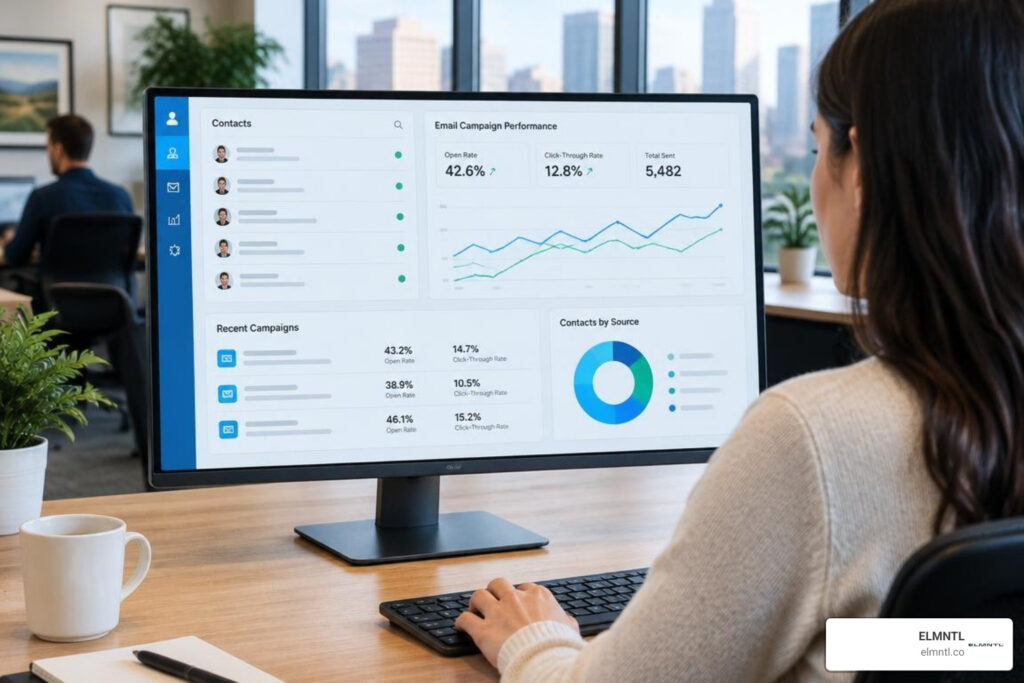
How to Connect Campaign Monitor and Salesforce
To connect Campaign Monitor and Salesforce, install the Campaign Monitor for Salesforce app from AppExchange, connect your Campaign Monitor account, then map your Salesforce contacts or leads to a subscriber list. Set up a scheduled import and test it with a small group before sending. Check that subscriber details and opt-out statuses update as expected.
The integration lets marketers build audiences from CRM data without exporting spreadsheets. It also brings email engagement into Salesforce, so sales teams can see how contacts respond. The guide below covers setup, list choices, reporting, and common sync issues.
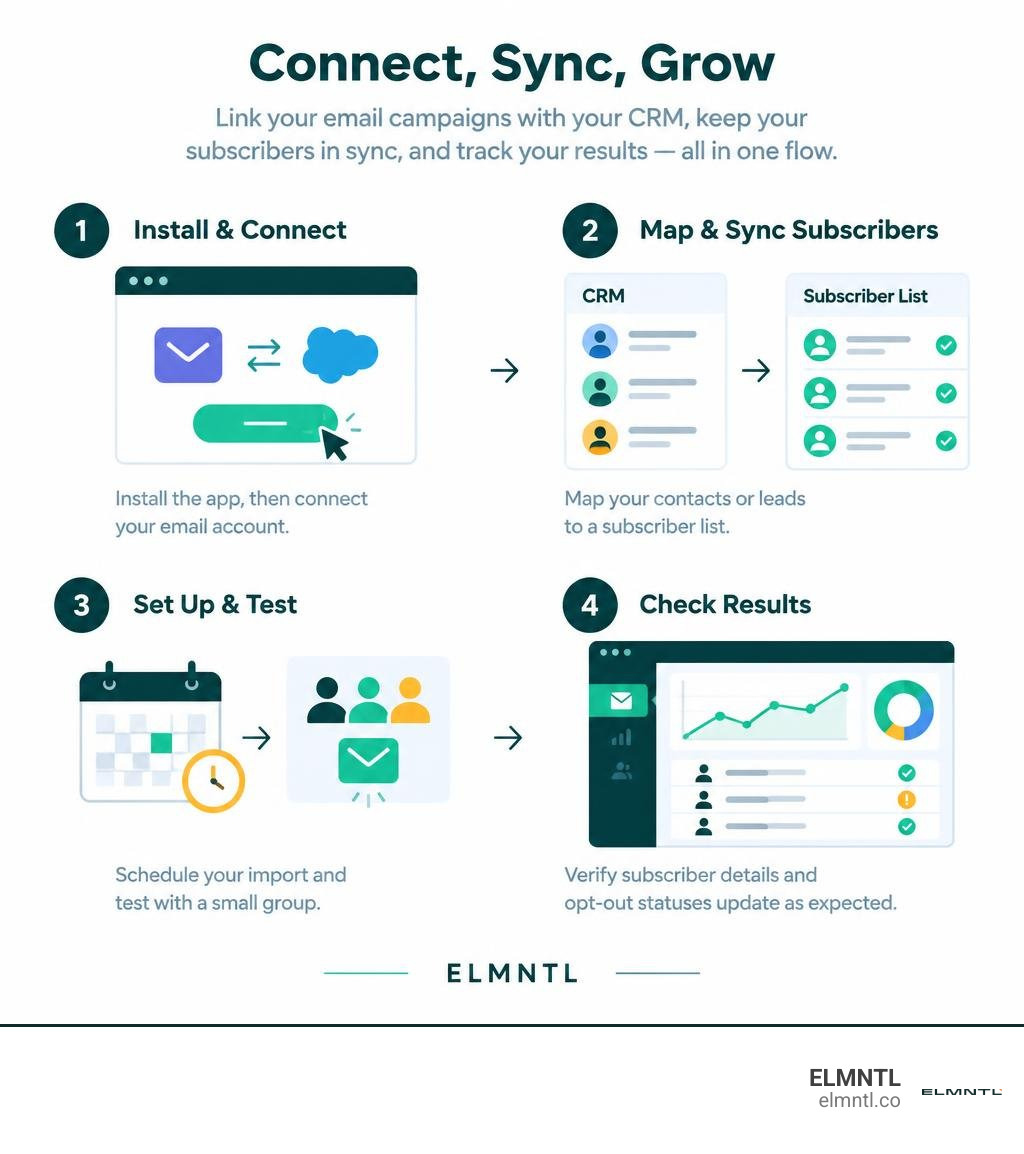
Important campaign monitor salesforce terms:
The Campaign Monitor Salesforce Integration: Features and Capabilities
Connecting email marketing software to a central CRM database eliminates the friction of manual CSV data exports. Originally listed on the Salesforce AppExchange on September 17, 2012, the official Salesforce email marketing integration for Campaign Monitor, developed and maintained by Beaufort 12, holds a 4.85 out of 5 rating across 96 reviews and supports thousands of teams worldwide.
Modern marketing demands agile workflows where non-technical team members can execute targeted communications without requesting custom database queries from IT. Connecting your email platform to your core database is a critical step when building modern CRM software business infrastructure. The package operates as a certified native AppExchange managed package, ensuring compatibility with Lightning Experience, Lightning App Builder, Salesforce Mobile for iOS and Android, Person Accounts, Multiple Currencies, and conversational Agentforce AI assistants.
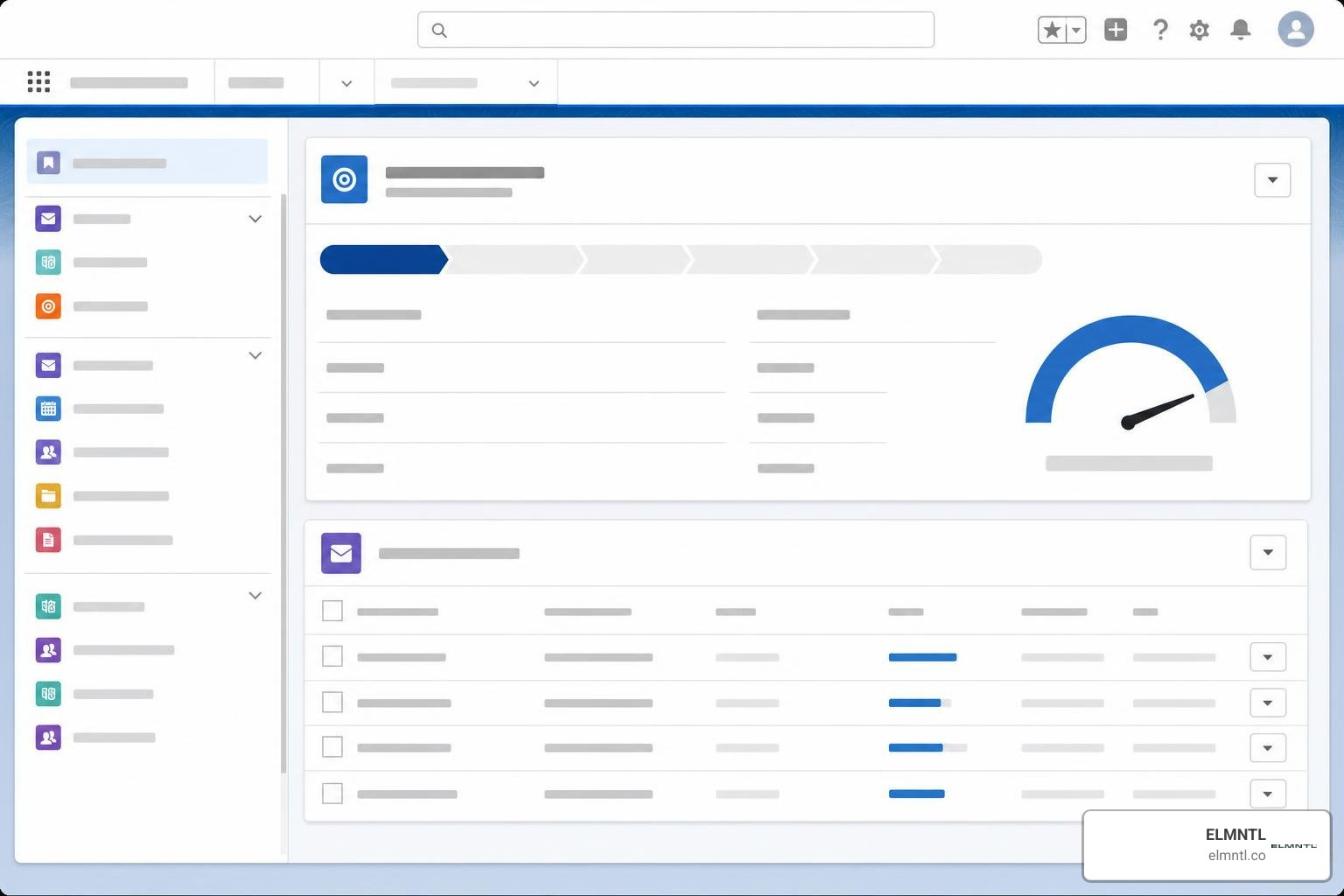
Core Data Objects and Schema Architecture
The managed package installs a structured data schema into your Salesforce environment using the package namespace prefix wbsendit__. A major benefit of this architecture is that the custom apps, tabs, and objects included in the managed package do not count against your standard Salesforce organization limits.
Data synchronizes across four primary custom objects:
- Email Tracking History (
wbsendit__Subscription_Tracking__c): Records individual recipient events such as sends, opens, link clicks, hard or soft bounces, and unsubscribes. It also captures geolocation data, including IP address, city, region, and country. - Subscriber List Members (
wbsendit__Subscription__c): Tracks subscriber status across states like Active, Unconfirmed, Unsubscribed, Bounced, Deleted, or Suppressed. It maintains all-time engagement metrics across campaigns, consent flags such as tracking and SMS permissions, and preferred email client metadata. - Campaign Monitor Campaign (
wbsendit__Campaign__c): Represents sent email campaigns, storing overall metrics such as total recipients, unique opens, total clicks, and bounces, with optional lookup relationships to standard Salesforce Campaigns. - Queue Items (
wbsendit__Queue_Item__c): An internal processing queue that stores outgoing transactional payloads, scheduled subscriber updates, and incoming batches formatted as JSON.
Understanding what the fields on the Campaign Monitor objects mean ensures administrators report on engagement totals rather than internal sync fields. This technical alignment is essential for bridging operational data and strategic intelligence across your enterprise reporting stack.
Viewing Email Tracking History in Salesforce
Sales and service teams need quick visibility into message interactions directly on Contact and Lead records. When evaluating engagement, open rate is calculated as opens divided by sent minus bounces, while click rate is calculated as clicks divided by total sent.
Administrators have two primary methods for displaying engagement:
- Historical Data Storage: The integration syncs and stores the last 365 days of email tracking history in the custom tracking object. Adding the related list to page layouts provides detailed historical logs, though high email volumes will consume standard Salesforce data storage.
- Lightning Web Components: Organizations seeking to preserve storage can embed real-time Lightning Web Components on record pages. These components query live data from the API on demand, giving customer-facing teams instant visibility without increasing database row counts.
Evaluating these interaction signals is a cornerstone of using analytics to measure marketing success across client lifecycles.
Installation, Data Synchronization, and List Architecture
Setting up a reliable integration requires careful planning around data schemas, user permissions, and sync frequencies. The connector supports Salesforce Professional, Enterprise, Unlimited, and Developer editions across Sales Cloud and Service Cloud.

Step-by-Step Campaign Monitor Salesforce Setup and Configuration
To establish the connection, follow this deployment workflow:
- Check System Prerequisites: Ensure you have an active paid account on both platforms. Your Salesforce account must have API access enabled (included in Professional Edition and above).
- Install the Managed Package: Download the application from the Salesforce AppExchange and deploy it to your sandbox or production environment.
- Authenticate Account Access: Open the integration setup console in Salesforce, link your account credentials, and grant OAuth permissions.
- Map Data Fields: Use the Import Wizard to configure bidirectional field mappings between Salesforce standard or custom fields and your subscriber list custom fields.
- Set Subscriber Rules and Journeys: Define criteria for adding leads and contacts automatically, and enable journey triggers within General Settings to initiate multi-step automated sequences upon record creation.
Review the Campaign Monitor for Salesforce technical guide to configure custom permission sets for non-admin users. This disciplined setup prevents synchronization errors while managing marketing contact statuses consistently across both databases.
Managing Lists Versus Dynamic Segments
A common architectural challenge is balancing list structures with dynamic segmentation. Maintaining fewer subscriber lists and relying on dynamic segments simplifies preference center management. However, building custom reporting inside Salesforce often benefits from structured list objects.
To maintain clean governance:
- Reserve subscriber lists for explicit public-facing opt-in categories, such as product announcements, monthly newsletters, or event updates.
- Use dynamic segments for rule-based operational filtering, such as geography, purchase history, or lead tier.
- Implement Declarative Lookup Rollup Summaries (DLRS) or custom lookup fields on Contact records to track active subscriptions without creating complex custom code.
- Schedule recurring report imports to update segment criteria automatically, applying robust email automation workflows across every stage of the customer lifecycle.
Troubleshooting and Maintenance Guide
Integration connectors run on background asynchronous Apex jobs that are subject to strict Salesforce platform governor limits. Proactive monitoring helps you catch data mismatches and API timeouts before they affect audience targeting.
Troubleshooting Common Campaign Monitor Salesforce Maintenance Codes
The application includes a diagnostic maintenance console that logs specific error codes when sync exceptions occur. Refer to the official maintenance codes troubleshooting guide when diagnosing issues.
Common codes include:
- CM4SFAUTOCREATE_CAMPAIGN: Occurs when the primary integration user lacks the Marketing User permission checkbox in Salesforce, or when custom validation rules on the standard Campaign object block automated record creation.
- CM4SFSTORAGEFULL: Indicates that your organization has reached its allocated data storage limits, usually caused by accumulating thousands of individual email tracking records.
- CM4SFCALLOUTLIMIT: Triggered when concurrent API calls exceed Salesforce limits during bulk data transfers.
- CM4SFCUSTOMTRIGGERS: Happens when custom Apex triggers on Contact, Lead, or integration objects are not bulk-safe for batches of 1,000 records.
Configure notification email addresses by clicking the maintenance screen gear icon to receive immediate alerts when background jobs encounter exceptions. Reviewing error logs regularly helps protect campaign attribution and ensures you are accurately tracking marketing return on investment.
Overcoming Sync Failures and Storage Bottlenecks
Data synchronization between platforms relies on two processes: scheduled imports and the primary sync. The primary sync runs every hour by default, pulling back tracking stats and opt-out updates.
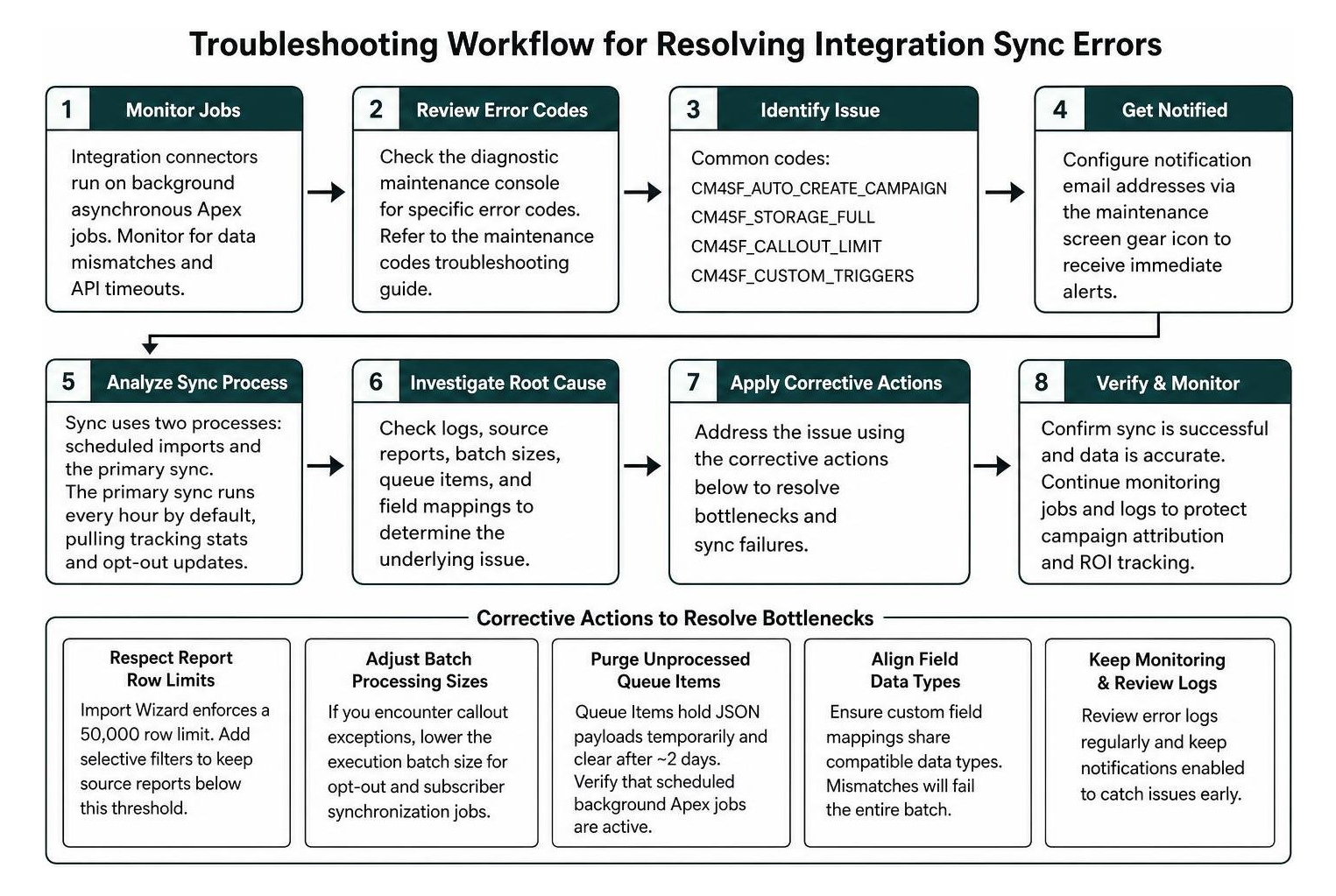
To resolve bottlenecks:
- Respect Report Row Limits: The Import Wizard enforces a hard limit of 50,000 rows when sourcing data from standard Salesforce reports. Add selective filter criteria to keep source reports below this threshold.
- Adjust Batch Processing Sizes: If you encounter callout exceptions, access the maintenance settings to lower the execution batch size for opt-out and subscriber synchronization jobs.
- Purge Unprocessed Queue Items: The Queue Items object holds JSON payloads temporarily and clears processed records automatically after roughly two days. If items accumulate continuously, verify that scheduled background Apex jobs are active.
- Align Field Data Types: Ensure custom field mappings share compatible data types. Mapping a text string into a numeric or date field will fail the entire batch.
Addressing these technical hurdles maintains reliable data delivery, supporting your broader team when setting marketing goals and performance milestones.
Pricing, Scaling Costs, and Platform Comparison
Choosing the right email marketing architecture requires balancing monthly subscription costs, administrative overhead, and technical complexity. The Beaufort 12 integration pricing starts at $25 per company per month, backed by a 14-day free trial and 24/5 technical support.
However, total cost of ownership also depends on your email platform subscription tier, which scales based on active subscriber volume.
| Feature / Consideration | Campaign Monitor for Salesforce (AppExchange) | Native Salesforce Solutions | Direct Custom API Connector |
|---|---|---|---|
| Starting Cost | Connector starts at $25/company/month plus email tier | High initial licensing, volume-based messaging | Custom development and ongoing maintenance costs |
| Setup Complexity | Low to moderate (install managed package and map fields) | Moderate to high (requires dedicated admin expertise) | High (requires developer resources and monitoring) |
| Data Sync Interval | 1-hour default primary sync with manual options | Real-time single database architecture | Configurable based on custom endpoint design |
| Storage Impact | Optional 365-day tracking history or live LWC view | Direct storage usage across native objects | Custom data schema storage overhead |
| Design Tools | Drag-and-drop builder with brand template controls | Native design tools varying by platform tier | Dependent on external email service provider |
Organizations with large subscriber databases (such as 200,000 contacts or more) should account for tiered subscriber pricing when evaluating long-term budgets. Testing campaign variations with A/B testing on marketing campaigns helps refine messaging and ensures every tier of your database delivers measurable returns.
Frequently Asked Questions About Campaign Monitor for Salesforce
Does Campaign Monitor count against Salesforce custom object limits?
No. The integration is deployed as a certified Salesforce AppExchange managed package. Custom objects, tabs, and applications included within the package namespace do not consume your organization’s custom object allocation limits.
How often does data sync between Campaign Monitor and Salesforce?
By default, the primary sync runs once every hour to pull campaign engagement statistics, link clicks, opens, bounces, and opt-out statuses back into Salesforce. Administrators can also trigger manual synchronizations or schedule specific Import Wizard report runs at custom intervals.
Can you trigger automated email journeys directly from Salesforce?
Yes. By enabling journey triggers under General Settings in the integration console, new records added to lists via the Import Wizard, Process Builder, or modern Salesforce Flow automations will automatically enter designated Campaign Monitor Journeys.
Conclusion
Aligning your email marketing engine with your CRM transforms static data into dynamic, revenue-generating customer touchpoints. Integrating Campaign Monitor and Salesforce helps your team execute targeted campaigns, track detailed engagement signals, and maintain clean subscriber data across departments.
At ELMNTL, we help scaling businesses connect their marketing technology, design modern digital experiences, and build data-driven strategies that drive sustainable growth. Explore our approach to comprehensive integrated marketing to unify your customer communications and get more value from your digital marketing investments.